

Here’s how to view and understand the Status of Workflows within HighLevel.
- Navigate to the Status tab within the Workflow Builder.
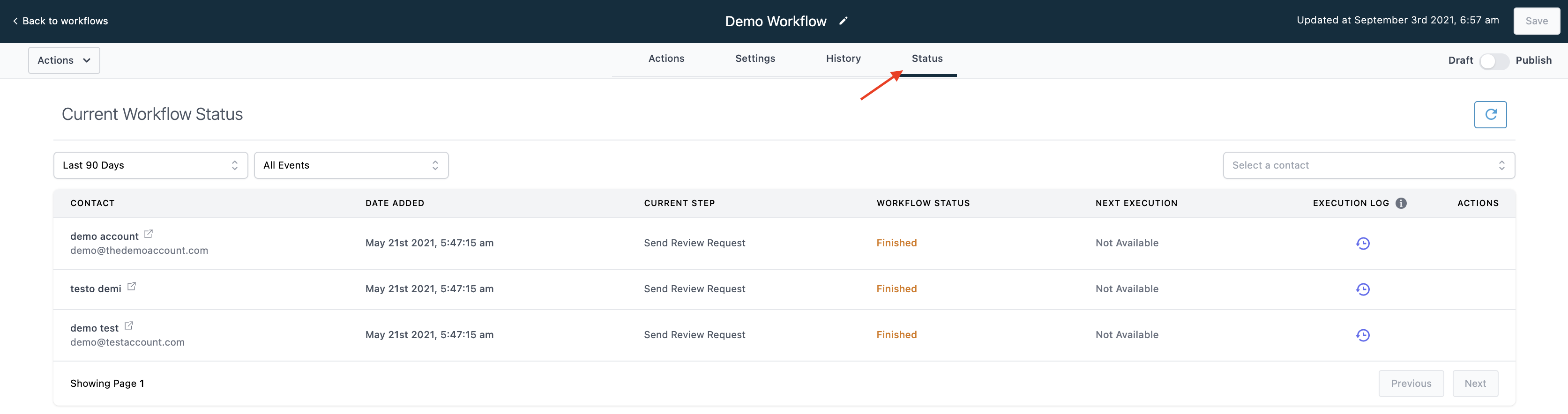
- Use the dropdown menus to sort and filter through the current statuses for your Workflow.
- Here, you can view the Contacts, Date Added, Current Step, Workflow Status, Next Execution, Execution Log, and Actions.
- For Contacts, you will be able to view the full history of actions for the contact within the specific workflow. If they’ve been in it more than once, you’ll see all the actions from each time they were added.
- Next Execution will give you a preview of what their next step in the chain of events will be.
- The Execution Log allows you to view the history of actions for the contact within the specific Workflow. If they’ve been in it more than once, you can use the icon to the left of their name for the complete history within this Workflow.
Frequently Asked Questions
Where can I check a workflow’s status in HighLevel?
Open the Workflow Builder and select the Status tab. Use its dropdown menus to sort and filter the current workflow statuses.
What information appears in the workflow Status tab?
The Status tab shows Contacts, Date Added, Current Step, Workflow Status, Next Execution, Execution Log, and Actions.
What does Next Execution show for a workflow contact?
Next Execution previews the contact’s next step in the workflow’s chain of events.
Start Your HighLevel Free Trial
Browse all GoHighLevel guides · HighLevel Workflows.