

Go HighLevel and WhatsApp Business
As businesses continue to evolve in the digital age, communication platforms like WhatsApp have become essential tools for connecting with customers. With the recent approval of the integration between Go HighLevel and WhatsApp Business by Meta, it’s time to delve into how WhatsApp for Business works, how to sign up, the costs involved, and the 24-hour rule.
What is WhatsApp for Business?
WhatsApp for Business is a free-to-download app that was built with the small business owner in mind. It allows businesses to interact with customers easily by using tools to automate, sort, and quickly respond to messages. It’s designed to help businesses build strong customer relationships, increase efficiency, and showcase their products and services.
Key Features of WhatsApp for Business
– Business Profile:
Create a virtual storefront with helpful information for your customers like your logo, business description, hours of operation, and website.
– Greeting:
Automatically send a custom welcome message to new customers when they start a conversation with your business.
– Away Messages:
Respond automatically to messages received outside your business hours to set expectations and let customers know when you’ll be back.
– Quick Replies:
Create shortcuts for messages you frequently sent to respond to common questions in just a few taps.
– Labels: Organize and filter important customer conversations so you can quickly find and respond to messages that need your attention.
How to Sign Up
Signing up for WhatsApp for Business is a straightforward process:
1. Download and launch the WhatsApp Business app:
The WhatsApp Business app is free to download on the Google Play Store
and the Apple App Store
. Tap the WhatsApp Business icon on your home screen.
2. Review the Terms of Service:
Read the WhatsApp Business Terms of Service, then tap Agree and Continue
to accept the terms.
3. Register:
Select your country from the drop-down list to add your country code, then enter your phone number in international phone number format. Tap Done
or Next
, then tap Ok
to receive your 6-digit registration code via SMS or phone call. To complete registration, enter your 6-digit code. Learn how to register your phone number in this article
.
4. Allow access to contacts and photos:
Contacts can be added to the WhatsApp Business app from your phone’s address book. You can also allow access to your phone’s photos, videos, and files.
5. Create an account:
Fill out your business name, select a business category, and choose a profile picture.
6. Build your business profile:
Tap EXPLORE
> Business profile
. Here, you can add important business information like your business address, description, hours, and more.
7. Start a chat.
Your business profile is now set up. Search for or select a contact to message. Enter a message in the text field. Then, send.
Shaun Clark, CEO and Co-Founder of HighLevel, recently revealed that the phone number associated with the WhatsApp Business account CAN be a Twilio or LC Phone number, which is great news!
Pricing
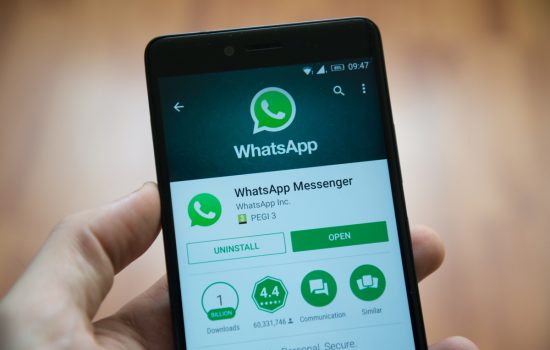
WhatsApp for Business operates on a conversation-based pricing model. This means that businesses are charged per 24-hour conversation, not per individual message. The cost per conversation varies by use case and is charged in 24-hour increments that start when the first message from a business is delivered.
There are four conversation categories on the WhatsApp Business Platform: marketing, utility, authentication, and service.
– Marketing conversations
relate to your business, products, or services. These include offers and promos, related product suggestions, abandoned cart messages, or any conversation that doesn’t qualify as authentication or utility.
– Utility conversations
are directly related to a transaction, including post-purchase notifications and recurring billing statements.
– Authentication conversations
provide users one-time passcodes for authentication purposes. These can occur at any stage of the user journey — such as account registration, account recovery, or integrity challenges.
– Service conversations
are initiated by users; these are typically about resolving customer enquiries. Businesses can respond within the 24-hour customer service window.
Each WhatsApp Business Account gets 1,000 free service conversations each month across all of its business phone numbers. This number is refreshed at the beginning of each month, based on WhatsApp Business Account time zone. Marketing, utility, and authentication conversations are not part of the free tier.
According to Facebook’s published rates, in the United States, the pricing is as follows:
– Marketing
: $0.0250 per conversation
– Utility
: $0.0150 per conversation
– Authentication
: $0.0135 per conversation
– Service
: $0.0088 per conversation
It’s still too early to know if HighLevel will get better pricing than Facebook’s published rates. HighLevel has confirmed there will be an ability for agencies to mark up the costs for the messaging.
For more details on WhatsApp Business pricing, visit the official pricing page
.
The 24-Hour Rule
WhatsApp requires all businesses on the WhatsApp Business Platform to respond to customers’ requests within 24 hours. This is known as the 24-hour rule. During this period, you can exchange unlimited messages with your customer.
However, once the 24-hour period is over, WhatsApp closes the conversation. You can still respond after 24 hours, but you can only do so using message templates that are pre-approved by WhatsApp.
Message Templates
WhatsApp for Business uses message templates, also known as Highly Structured Messages (HSM), for sending out notifications or customer service messages.
These templates are pre-approved by Meta and can be reused for various campaigns. They can be text-only or include media like images, videos, documents, and action buttons. You can personalize these templates by adding variables that adjust based on the user’s demographics, order details, or any other factor.
Here are some examples of WhatsApp Business message templates:
- Welcome Message
:
“Welcome to [Company name] 😀. I’m [Your name], [Your role] at [Company name], and I want to guide you through your next steps with [Product name]: [Step 1], [Step 2], [Step 3]. For more information, visit [Your company website]. Thanks for choosing us!”
- Account Activation Message
:
“Dear [Customer Name], The [Company name] team is glad to see you on board! Your account has been activated. You can access and manage your personal account by following this link: [Link]. Feel free to contact our customer support at [Company email address] if you have any questions.”
- Order Confirmation
:
“Hi [Customer Name]! Your order number [Order Number] is successfully confirmed. Your order will be sent to you within 3-5 business days. Visit [Link] for information on estimated delivery time. You can track your shipment by clicking on the button below. Track my order (CTA)”
- Appointment Update
:
“Hi [Customer Name]! Your appointment with [Company Name] is coming up. If you need to change this reservation, please use the button below. Reschedule (CTA)”
- Support Update
:
“Hi [Customer Name]. Thanks for contacting our support team. A relevant agent will get back to you soon. Our typical response time is 24 hours.”
- Shipping Update
:
“Hello [Customer Name]! Your order has been shipped to your address [Address]. Use the tracking code [Tracking Code] to get relevant shipment information.”
- Payment Update
:
“Hi [Customer Name], we’re confirming your payment [Payment Amount] for the order number [Order Number] has been received. Your order will be shipped within 2 business days. We’ll send the shipment confirmation and provide you with a tracking code soon.”
- Feedback Request
:
“Hello [Customer Name]! You have recently received your order number from [Company Name]. If you’d like to share your experience, please open [Link]. It will take only 2 minutes of your time.”
- Cancellation Message
:
“Sorry to see you go, [Customer Name]! Let’s hope this break won’t last long. Meanwhile, would you share your experience with us by taking a quick survey? Follow the link to help us improve: [Link]. If you want to redeem your subscription, access your special offer here: [Link]”
- WhatsApp Auto-Reply Template
:
“Thanks for contacting us! We’ve received your message and will get back to you within 24 hours. If you’ve contacted us on a weekend, we’ll reply once we’re back to work on Monday, between 9 am and 6 pm. P.S. Have you checked our knowledge base? We might have covered a topic you’re interested in there! Check it out here: [Link]”
These templates can be adapted to fit your business needs. It’s important to note that all message templates need to be pre-approved by WhatsApp to ensure they comply with their Message Template Guidelines. The approval process usually takes about 24 hours.
Conclusion
In closing, the integration of Go HighLevel and WhatsApp Business presents a significant opportunity for businesses, especially those with an international customer base, to enhance their customer communication and engagement strategies.
WhatsApp for Business, with its global reach and popularity, offers a range of features designed to streamline and personalize customer interactions, from automated greetings and quick replies to customizable message templates. While the pricing model is conversation-based, it’s yet to be seen if Go HighLevel will secure better rates than those currently published by Facebook.
As the digital landscape continues to evolve, tools like WhatsApp for Business will undoubtedly play a pivotal role in shaping the future of business communication, particularly for businesses operating across borders.
For more information on WhatsApp Business, visit their official website
.
And if you’re new to HighLevel, check out a free trial on the HighLevel website.
Published by Danish Hussain. This adapted guide includes licensed source material. Product details, event information and promotional terms reflect the coverage date; check the provider for current terms.