

When using workflows in HighLevel, you may want to categorize them to stay organized. Using the Workflow Folders feature will help you stay organized.
Step 1: Creating Folders In HighLevel
- Navigate to Workflows
- Click “Create folder” in the top right
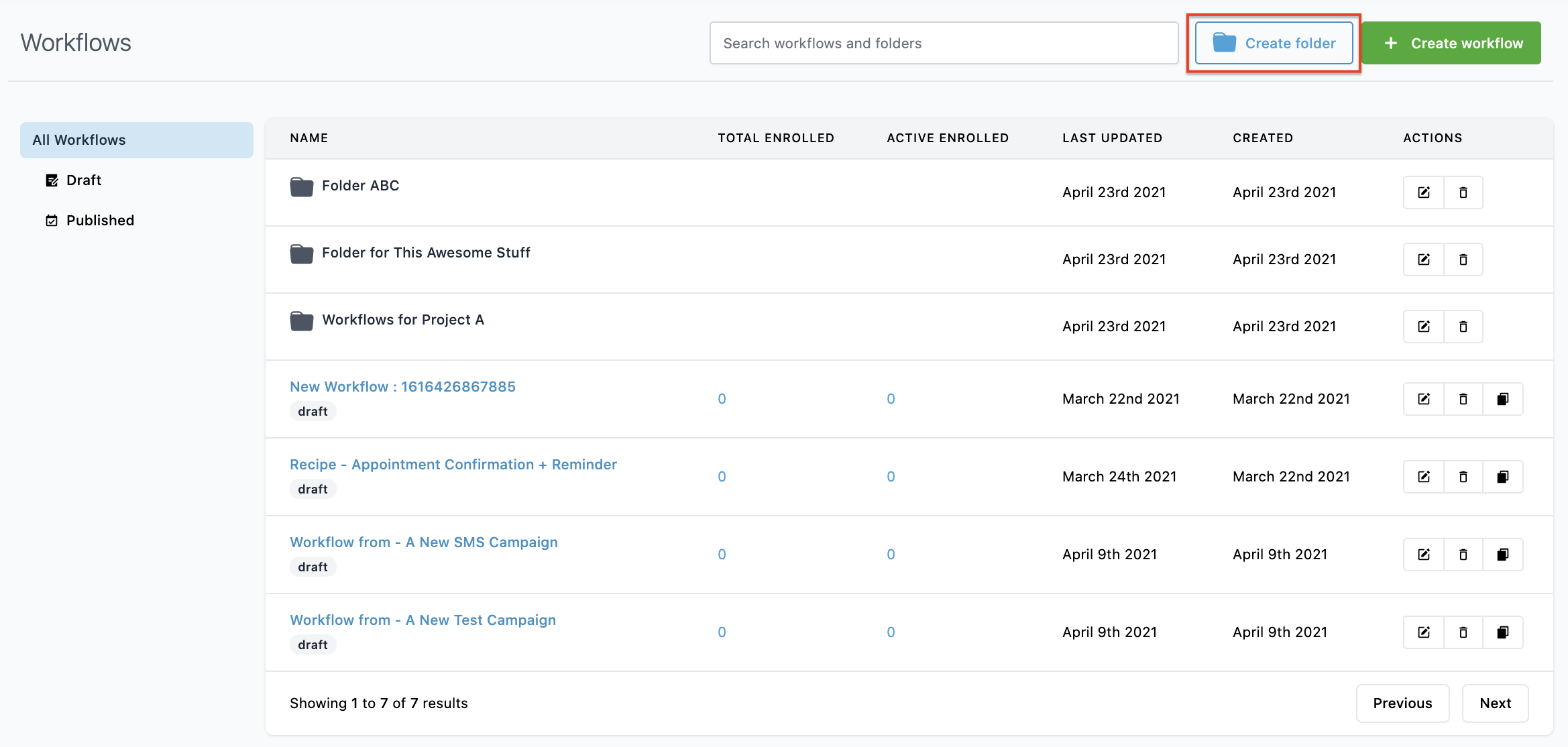
- In the popup window, name your Folder.
- Save, and it will appear in your list of All Workflows.
Step 2: Moving Workflows Into Folders
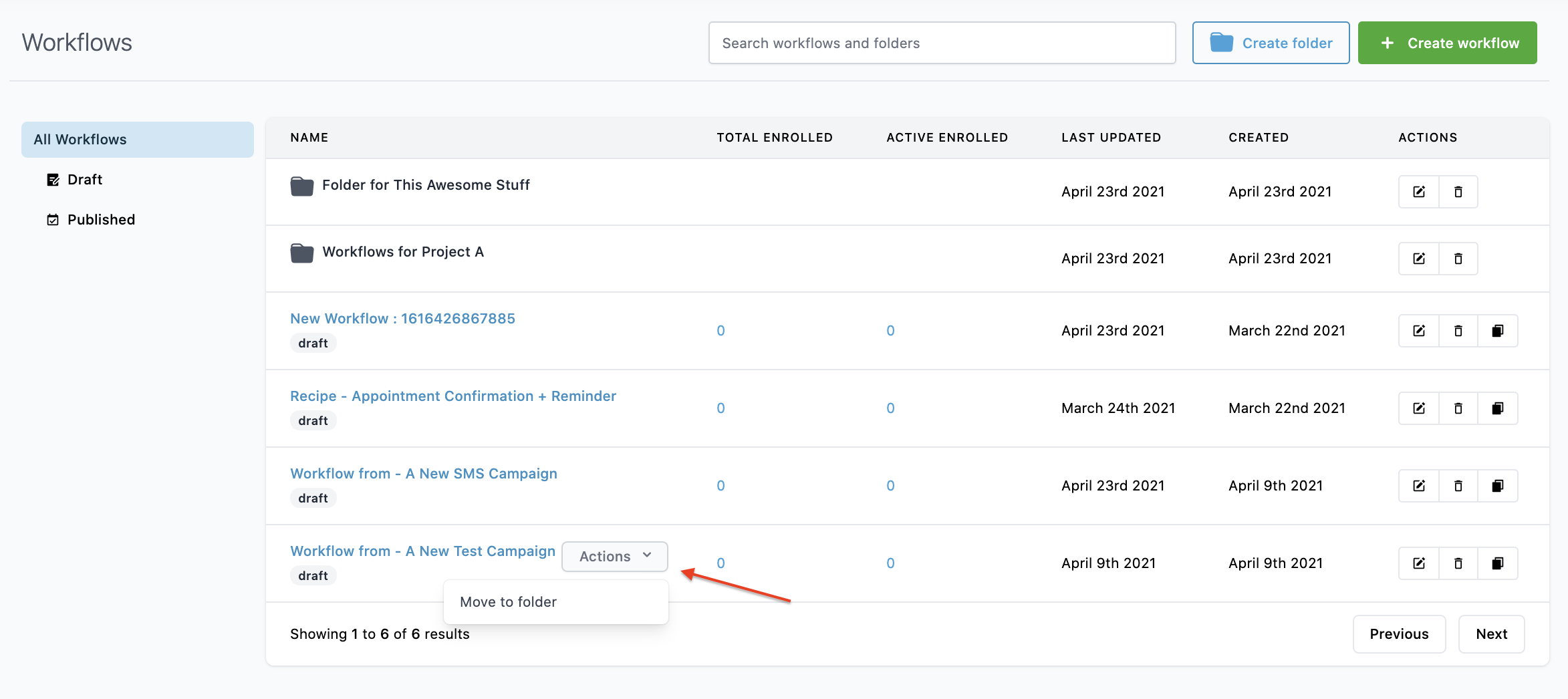
- Hover next to the name of an existing Workflow to popup the Actions tab.
- Select Move to Folder from the dropdown
- In the popup window, choose a folder, and Save.
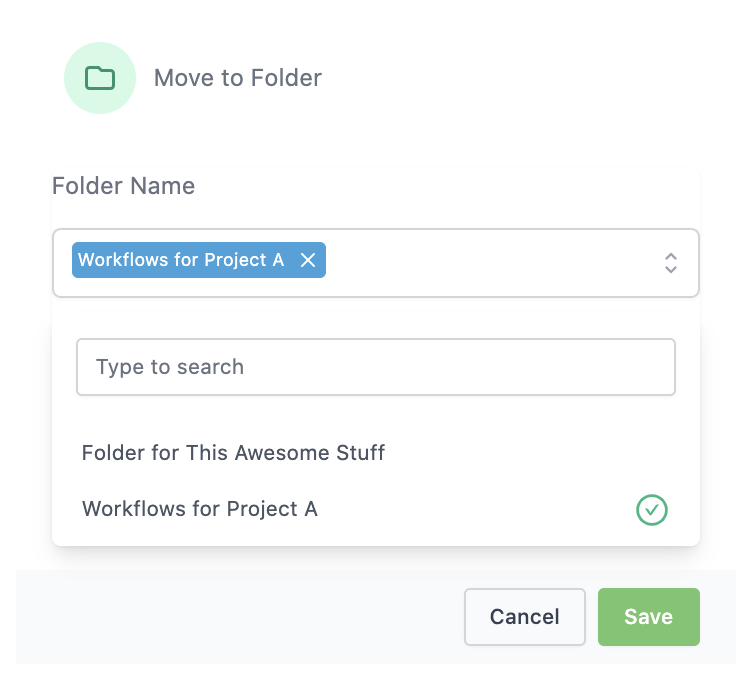
NOTE: In HighLevel, you can move a Workflow out of one folder into the general page, or into another folder, following the same process. You can also navigate into a folder and create a Workflow from within the folder to automatically have it saved within that folder.
Frequently Asked Questions
What does “How to Organize Your Workflows Into Folders in HighLevel” cover?
When using workflows in HighLevel, you may want to categorize them to stay organized. Using the Workflow Folders feature will help you stay organized.
Start Your HighLevel Free Trial
Browse all GoHighLevel guides · HighLevel Workflows.