

You can customize the navigation bar for HighLevel’s funnel or website’s mobile view.
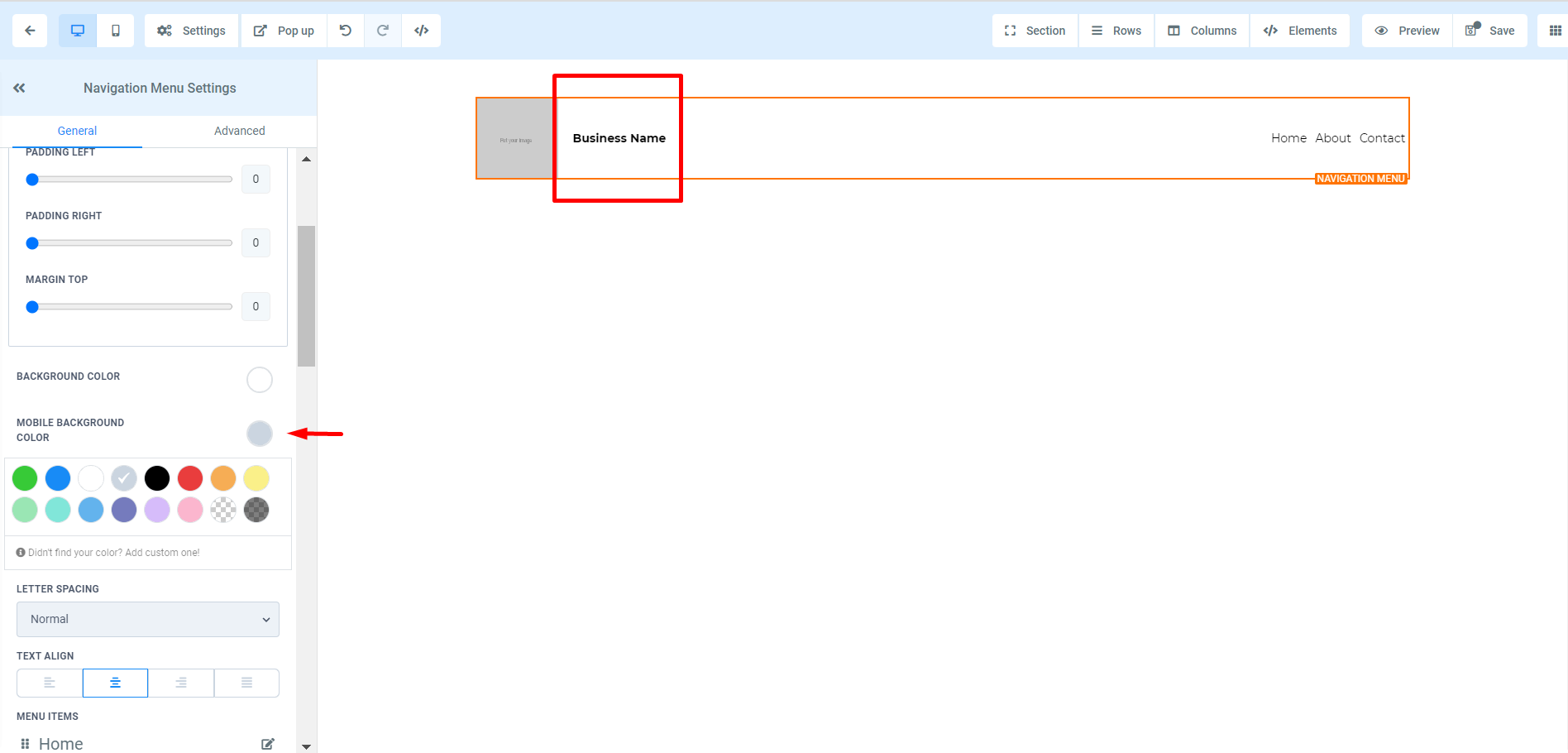
Step 1: Choosing the Mobile background color
- Navigate to HighLevel’s funnel builder
- Add a navigation bar using the drag-and-drop funnel (or website) builder.
- With the navigation bar selected, scroll down the “General” settings menu on the lefthand side.
- Choose a color for the mobile background
- Save your changes
Frequently Asked Questions
How do I change the mobile navigation background in HighLevel?
Open the funnel or website builder and select the navigation bar. Scroll through its General settings, choose the mobile background color, and save your changes.
Where do I add a navigation bar to a HighLevel funnel?
Open HighLevel’s funnel builder and add a navigation bar with the drag-and-drop builder.
Can the mobile navigation bar use a custom background color?
Yes. Select the navigation bar in the builder and choose a color in the mobile background setting under General.
Start Your HighLevel Free Trial
Browse all GoHighLevel guides · HighLevel Funnel.