

HighLevel Automated Follow-Up 101: The Complete Guide to Automatic Email and SMS Sequences
Automating your lead follow-up is one of the most powerful things you can do for your business. It ensures every new lead gets a consistent, timely, and personalized experience, which is crucial for building trust and driving conversions. With HighLevel automated follow-up, you can create sophisticated email and SMS sequences that nurture leads around the clock, so you can focus on closing deals instead of manually sending messages. This guide will walk you through everything you need to know to get started.
Key Takeaways
- Automated follow-ups in HighLevel are managed through Workflows, which allow you to define triggers and a series of actions.
- You can create both email and SMS follow-up sequences to engage leads across multiple channels for maximum impact.
- HighLevel provides pre-built “Recipes” like the “Email Drip Sequence” to help you launch common automation workflows quickly.
- For more customized sequences, you can build workflows from scratch, giving you full control over triggers, actions, and timing.
- Combining different actions like sending messages, adding tags, and creating opportunities within a single workflow can create a powerful sales and marketing machine.
1. Understanding the Power of HighLevel Automated Follow-Up
Before we dive into the step-by-step instructions, it’s important to understand the core concepts behind HighLevel’s automation capabilities. The entire system is built around the idea of “Workflows,” which are essentially automated processes that you design.
What are Workflows?
A Workflow is a sequence of automated actions that are initiated by a specific trigger. Think of it as a flowchart for your follow-up process. When a certain event happens (the trigger), the workflow kicks in and performs the actions you’ve defined, in the order you’ve set.
Triggers and Actions: The Building Blocks of Automation
Every workflow consists of two main components:
- Triggers: This is the event that starts the workflow. A common trigger is a “Form Submitted,” which means the workflow begins whenever someone fills out a specific form on your website or landing page. Other triggers could be a contact tag being added, an appointment being booked, or a purchase being made.
- Actions: These are the steps the workflow takes after it’s been triggered. The most common actions for follow-up are “Send Email” and “Send SMS,” but you can do so much more. You can add or remove tags, add the contact to a pipeline, send a notification to your team, and much more.
By combining different triggers and actions, you can build incredibly powerful and customized HighLevel automated follow-up sequences that are perfectly tailored to your business needs.
2. How to Create an Automated Email Follow-Up Sequence
One of the easiest ways to get started with automated follow-up is by creating an email drip sequence. This is a series of pre-written emails that are sent to a new lead over a period of days or weeks. HighLevel makes this incredibly simple with their pre-built Workflow Recipes.
Step 1: Navigate to the Automation Section
First things first, head over to the “Automation” tab in your HighLevel dashboard. This is where you’ll find all your workflows and where you’ll create new ones.
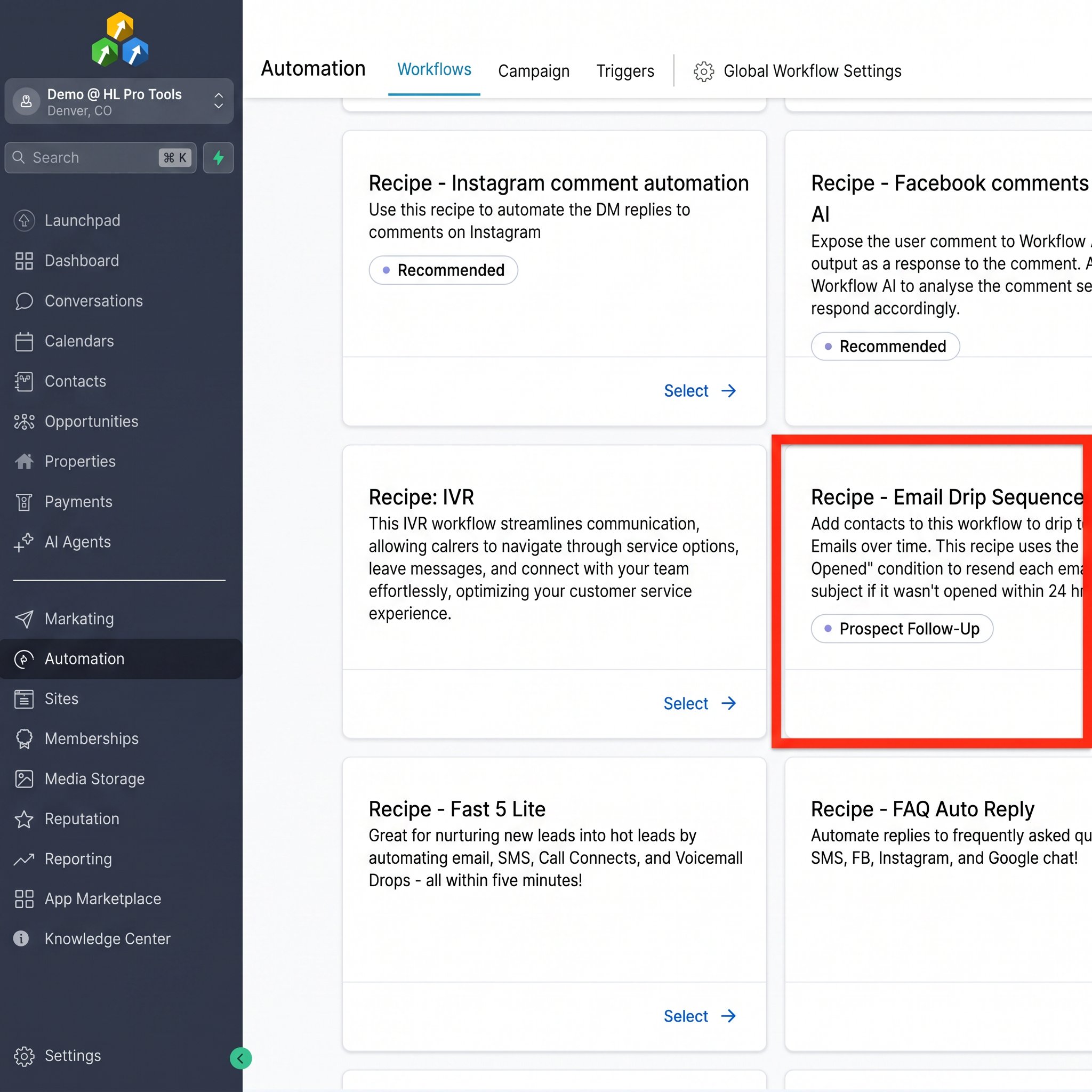
Step 2: Create a New Workflow Using a Recipe
Click the “Create Workflow” button. Instead of starting from scratch, we’re going to use a recipe to speed things up. Select the “Email Drip Sequence” recipe from the list. This will load a pre-configured workflow that’s all set up for an email follow-up sequence.
Step 3: Configure the Workflow Trigger
The recipe will have a placeholder trigger. You need to tell the workflow what should start the sequence. Click on the trigger and select “Form Submitted.” Then, add a filter to specify which form you want to use. Select your main contact or lead generation form from the dropdown list and save the trigger.
Step 4: Customize Your Emails
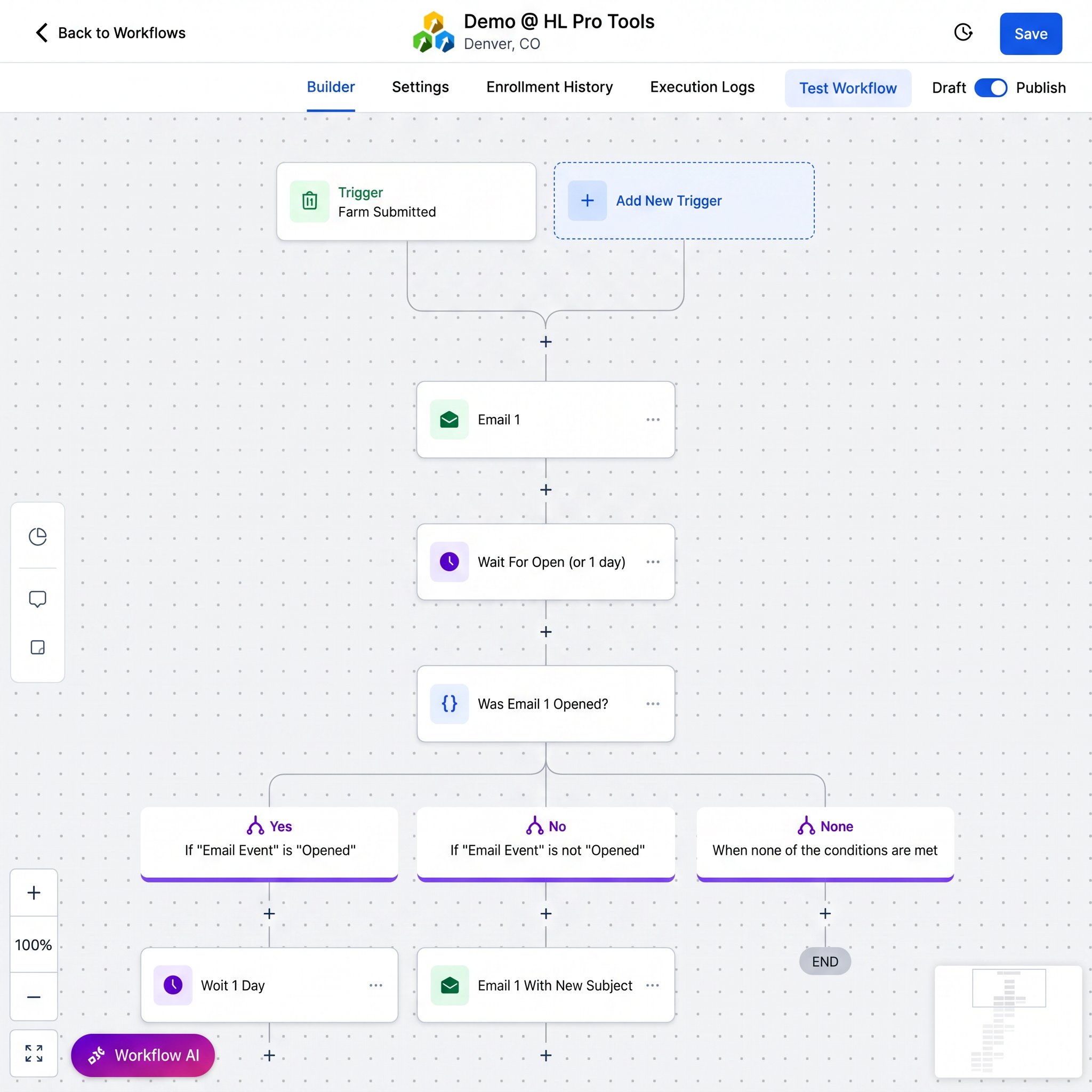
The recipe will include several “Send Email” actions, each separated by a “Wait” action. Click on each email action to customize its content. You can set the “From Name,” “From Email,” and subject line. Then, write the body of your email. You can use the visual editor or the code editor to create your email. Be sure to save each email action after you’re done editing.
Pro Tip: Use personalization tokens like `{{contact.first_name}}` in your subject lines and email bodies to make your messages feel more personal and increase engagement.
Step 5: Publish Your Workflow
Once you’ve customized all your emails and are happy with the sequence, it’s time to set it live. Simply click the “Publish” toggle at the top of the workflow builder and then hit the “Save” button. Now, every time someone fills out your selected form, they will automatically start receiving your email follow-up sequence.
3. Building an Automated SMS Follow-Up Sequence
While email is great, adding SMS to your follow-up strategy can significantly boost your contact rates. Text messages have a much higher open rate than emails, making them perfect for time-sensitive offers or important reminders. Here’s how to build an SMS sequence from scratch.
Step 1: Create a New Workflow from Scratch
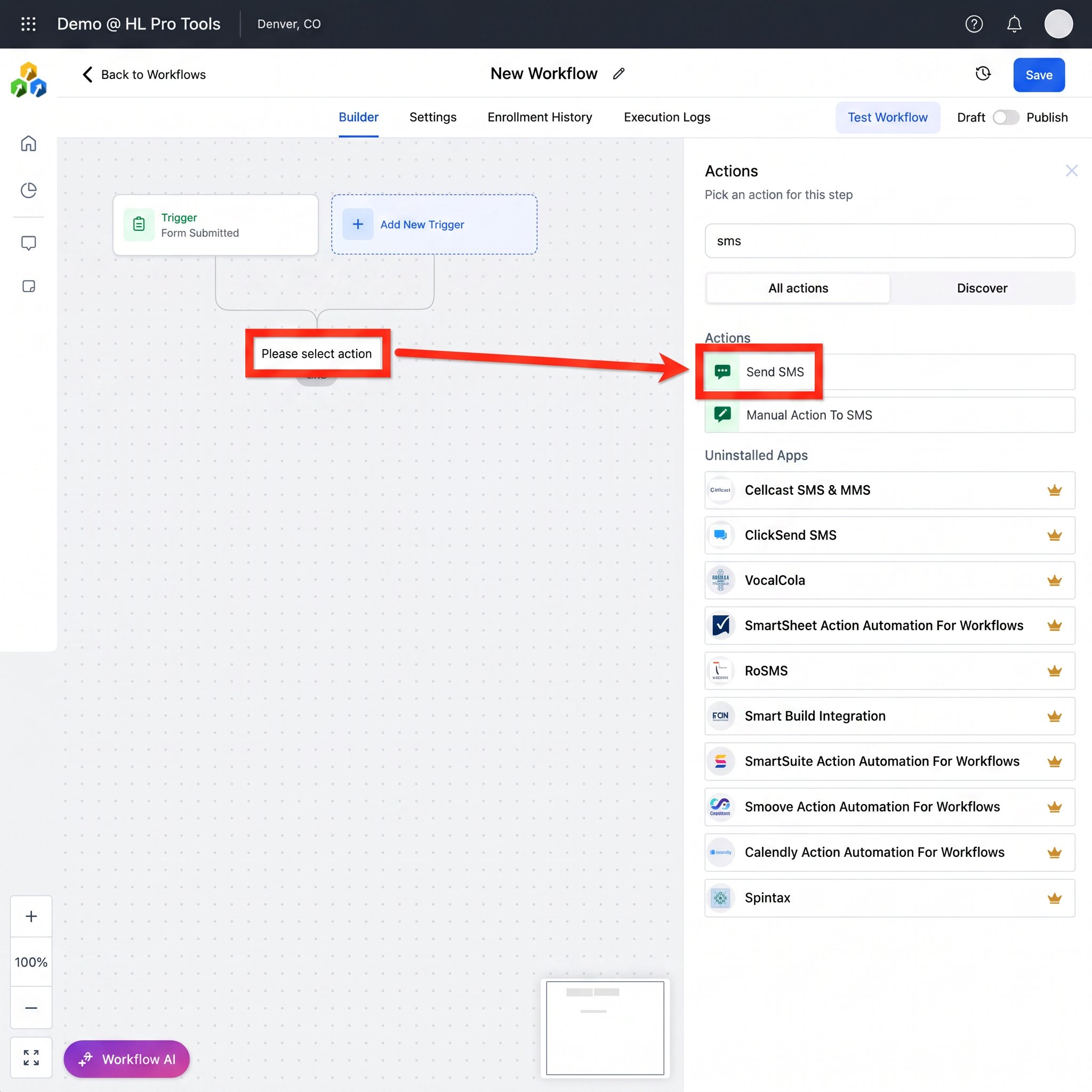
This time, when you click “Create Workflow,” choose “Start from scratch.” This will give you a blank canvas to work with.
Step 2: Set Up the Trigger
Just like with the email sequence, you need to define a trigger. Let’s use “Form Submitted” again. Select the same form you used for your email sequence so that new leads get both emails and text messages.
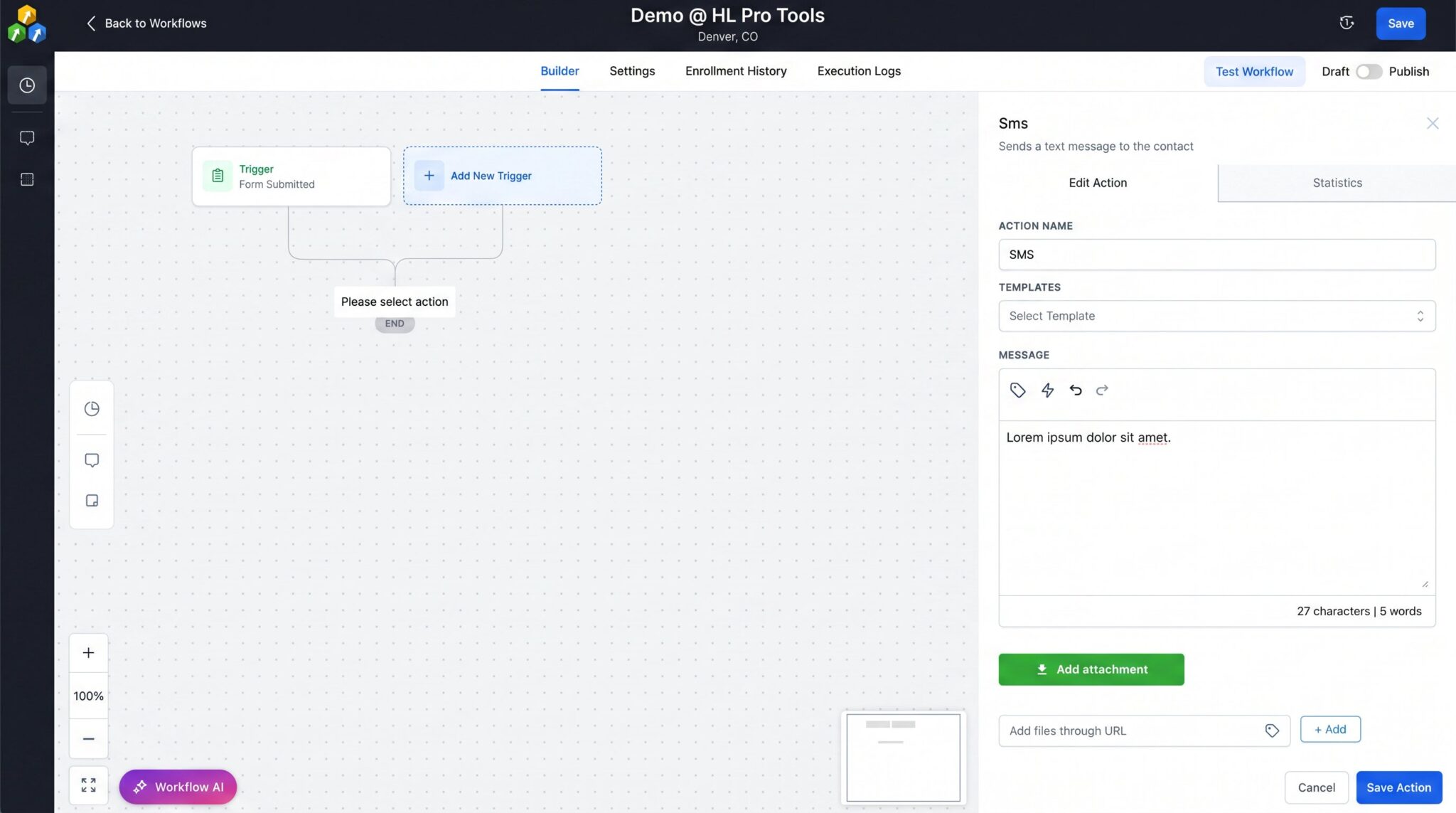
Step 3: Add the “Send SMS” Action
Click the “+” icon to add your first action and select “Send SMS.” A new window will pop up where you can compose your text message. Keep it short, clear, and to the point. Remember that SMS messages have a character limit, so be concise.
Step 4: Use “Wait” Actions to Space Out Your Messages
You don’t want to bombard your new leads with a bunch of text messages all at once. Add “Wait” actions between each “Send SMS” action to space them out. You could wait a few minutes for the first text, then a day for the next one, and so on.
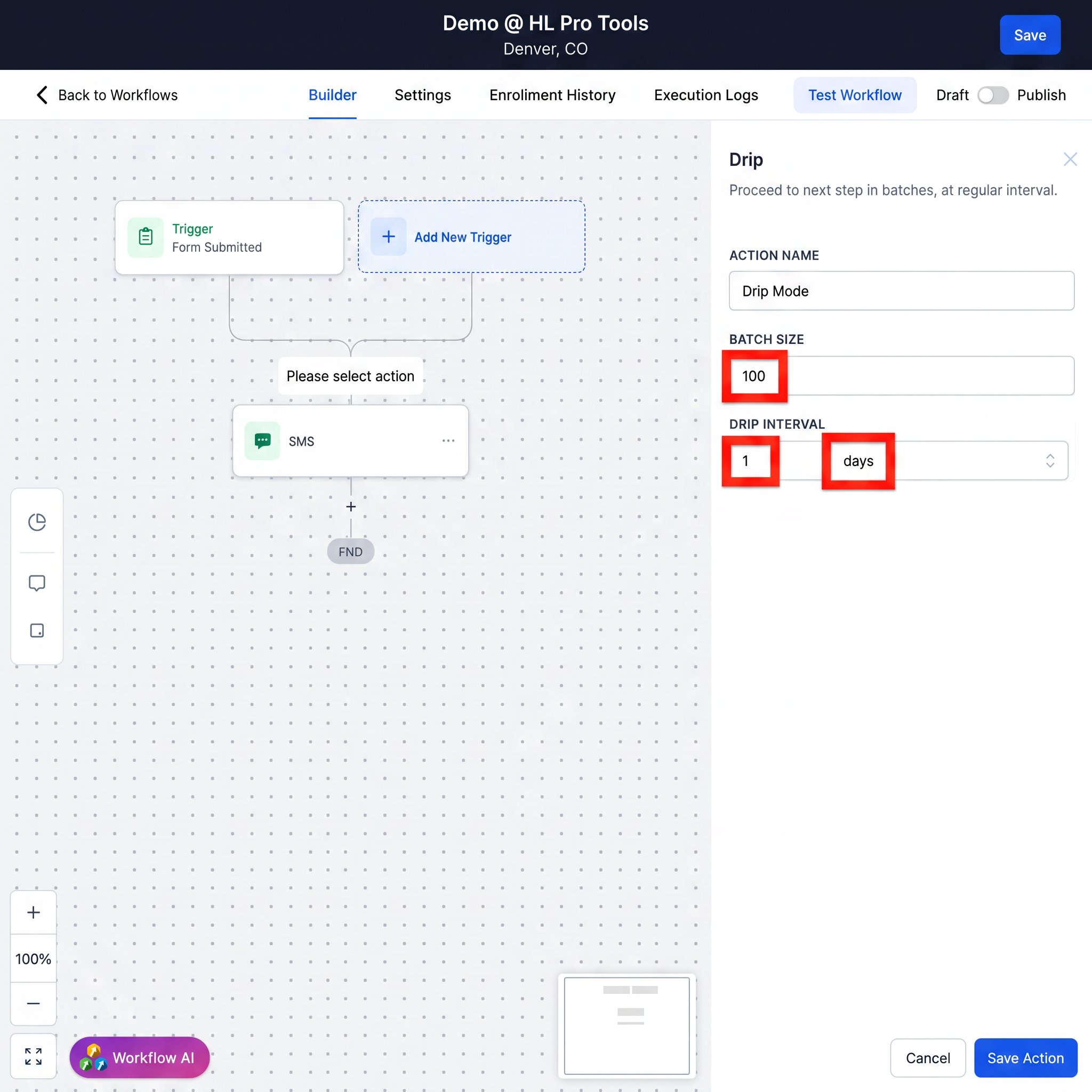
Step 5: Consider the Drip Action for Large Lists
If you are adding a large number of existing contacts to an SMS workflow, it’s a good practice to use the “Drip” action. This allows you to send the messages in batches, which helps with deliverability and prevents your number from being flagged as spam. You can set it to send a certain number of messages per day.
4. Advanced HighLevel Automated Follow-Up Strategies
Once you’ve mastered the basics of email and SMS follow-up, you can start exploring some of HighLevel’s more advanced automation features.
Using Conditional Logic with the “If/Else” Action
The “If/Else” action allows you to create different paths in your workflow based on a contact’s properties or actions. For example, you could check if a contact has a certain tag. If they do, you can send them down one path with a specific set of messages. If they don’t, you can send them down another path.
Integrating with Pipelines and Opportunities
You can make your sales process even more efficient by having your workflows automatically manage your pipeline. For example, you can have an action that creates a new opportunity in your pipeline as soon as a lead fills out a form. Then, as the lead interacts with your follow-up messages (e.g., clicks a link or replies), you can have the workflow automatically move the opportunity to the next stage in your pipeline.
Pro Tip: Create a dedicated pipeline for new leads and use workflows to automatically move them through the initial stages as they engage with your follow-up. This keeps your main sales pipeline clean and focused on hot leads.
5. Best Practices for Your Automated Follow-Up
Creating the workflows is only half the battle. To get the best results, you need to follow some best practices.
- Provide Value: Don’t just use your follow-up to sell. Provide valuable content, tips, and resources that will help your leads and build your authority.
- Keep it Conversational: Write your messages as if you were talking to a real person. Avoid corporate jargon and be authentic.
- Have a Clear Call to Action: Every message should have a clear next step you want the lead to take, whether it’s booking a call, visiting a webpage, or replying to your message.
- Test Everything: Before you activate a workflow, test it thoroughly with a test contact to make sure everything is working as expected.
FAQ Section
Can I use automated follow-up for things other than form submissions?
Absolutely! You can trigger a workflow based on a wide variety of events, including a contact tag being added, an appointment being booked, a product being purchased, a contact replying to a message, and many more.
How many emails or SMS messages should I include in a sequence?
There’s no magic number. It depends on your industry, your offer, and your audience. A good starting point is 3-5 emails and 2-3 SMS messages spread out over a week or two. You can then adjust based on the performance of your campaigns.
What’s the difference between a Campaign and a Workflow?
Campaigns are an older feature in HighLevel that have largely been replaced by Workflows. While you can still use campaigns for simple, linear sequences, Workflows are much more powerful and flexible, allowing for conditional logic and a wider range of actions. It’s recommended to use Workflows for all new automation.
How do I stop a contact from receiving automated messages?
There are several ways. You can have an action in your workflow that removes the contact from the workflow if they take a certain action, like booking an appointment. You can also manually remove a contact from a workflow from their contact record. Additionally, contacts can reply with words like “STOP” to opt-out of SMS messages.
Can I see if a contact has opened my email or clicked a link?
Yes, HighLevel tracks email opens and link clicks. You can see this information in the contact’s conversation history. You can even use these events as triggers for other actions in your workflows, allowing you to create highly responsive and intelligent follow-up sequences.
Conclusion
Setting up a HighLevel automated follow-up system is a game-changer for any business. It allows you to provide a world-class experience for every new lead, nurture them effectively, and ultimately convert more of them into paying customers, all without you having to lift a finger. By leveraging the power of Workflows, you can build sophisticated email and SMS sequences that work for you 24/7. So, what are you waiting for? It’s time to start building your first automated follow-up sequence and watch your business grow.
Frequently Asked Questions
What are Workflows?
A Workflow is a sequence of automated actions that are initiated by a specific trigger. Think of it as a flowchart for your follow-up process. When a certain event happens (the trigger), the workflow kicks in and performs the actions you’ve defined, in the order you’ve set.
Can I use automated follow-up for things other than form submissions?
Absolutely! You can trigger a workflow based on a wide variety of events, including a contact tag being added, an appointment being booked, a product being purchased, a contact replying to a message, and many more.
How many emails or SMS messages should I include in a sequence?
There’s no magic number. It depends on your industry, your offer, and your audience. A good starting point is 3-5 emails and 2-3 SMS messages spread out over a week or two. You can then adjust based on the performance of your campaigns.
What’s the difference between a Campaign and a Workflow?
Campaigns are an older feature in HighLevel that have largely been replaced by Workflows. While you can still use campaigns for simple, linear sequences, Workflows are much more powerful and flexible, allowing for conditional logic and a wider range of actions. It’s recommended to use Workflows for all new automation.
How do I stop a contact from receiving automated messages?
There are several ways. You can have an action in your workflow that removes the contact from the workflow if they take a certain action, like booking an appointment. You can also manually remove a contact from a workflow from their contact record. Additionally, contacts can reply with words like “STOP” to opt-out of SMS messages.
Start Your HighLevel Free Trial
Browse all GoHighLevel guides · HighLevel Phone · HighLevel Email.