

Connecting your **HighLevel personal inbox** is a game-changer for streamlining your client communication. Instead of juggling multiple tabs and applications, you can manage all your emails directly within the HighLevel platform. This guide will walk you through everything you need to know, from connecting your Gmail or Outlook account to mastering two-way sync and managing your conversations like a pro. Let’s dive in and get your inbox connected!
Key Takeaways
- Connecting your personal inbox allows you to manage emails directly within HighLevel.
- HighLevel supports two-way sync with both Gmail and Outlook.
- Centralizing your communication saves time and improves efficiency.
- You can manage conversations, signatures, and forwarding all in one place.
1. Getting Started: Why Connect Your Personal Inbox?
You might be wondering why you should bother connecting your personal inbox to HighLevel. The answer is simple: efficiency. By integrating your email, you create a single source of truth for all your client communications. No more switching between your email client and HighLevel to keep track of conversations. Everything is in one place, giving you a holistic view of your interactions with each contact.
This integration also enables powerful automation. You can trigger workflows based on email events, send automated follow-ups, and track the entire customer journey without missing a beat. It’s about working smarter, not harder.
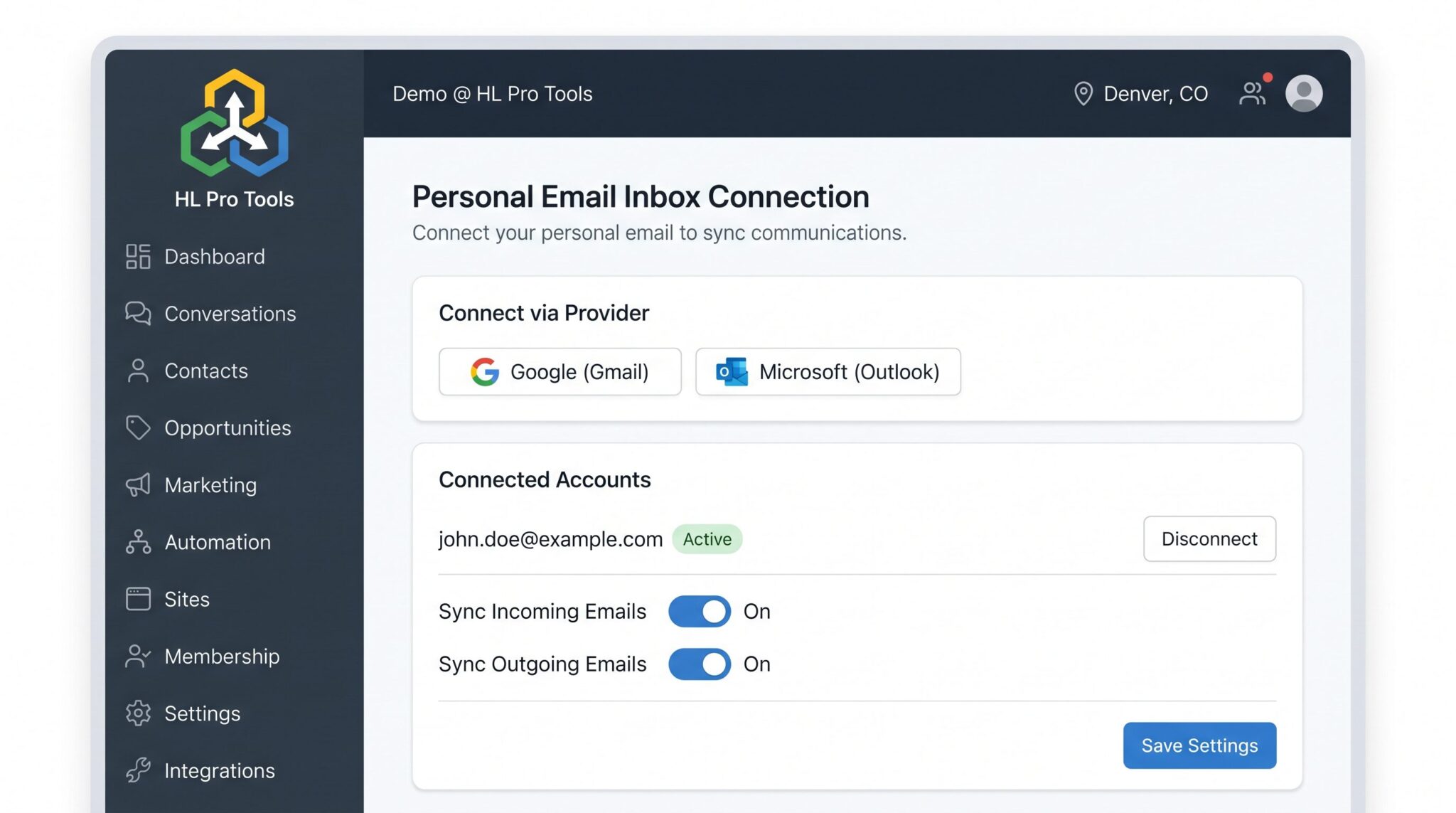
2. How to Connect Your Gmail Account
Connecting your Gmail account is a straightforward process. HighLevel has made it easy to get your **HighLevel personal inbox** set up for two-way sync. Follow these simple steps to get started.
Step-by-Step Guide:
- Navigate to Settings in your HighLevel dashboard.
- Click on My Profile.
- Under the General tab, scroll down to the “Email (2-way-sync)” section.
- Click the Connect button next to the Gmail logo.
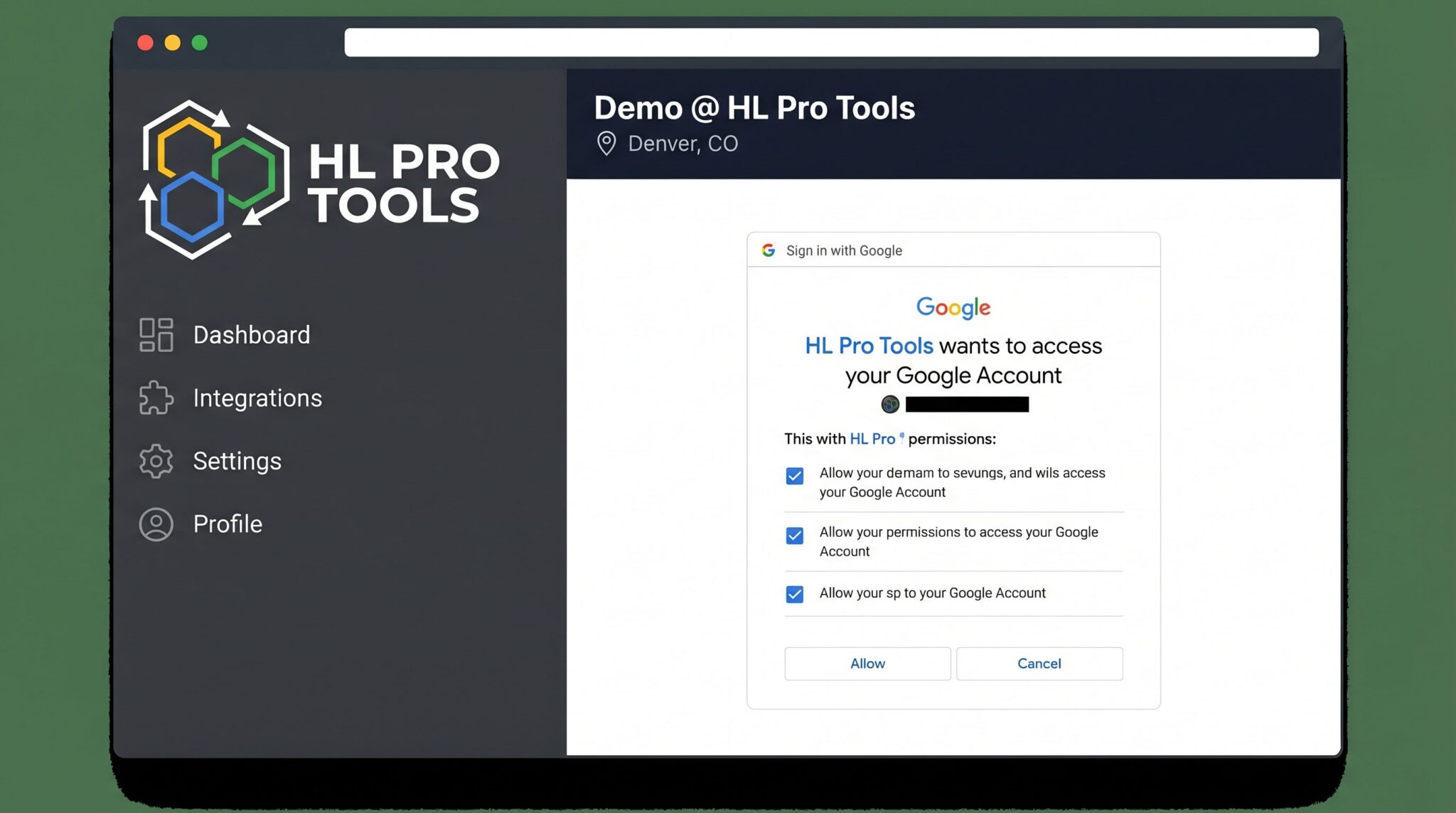
- You will be prompted to sign in to your Google account.
- Grant the necessary permissions to allow HighLevel to access your inbox.
Once you’ve completed these steps, your Gmail account will be connected and ready for two-way synchronization.
3. How to Connect Your Outlook Account
If you’re an Outlook user, the process is just as simple. HighLevel provides seamless integration with Microsoft accounts, allowing you to sync your Outlook inbox with the same ease as Gmail.
Step-by-Step Guide:
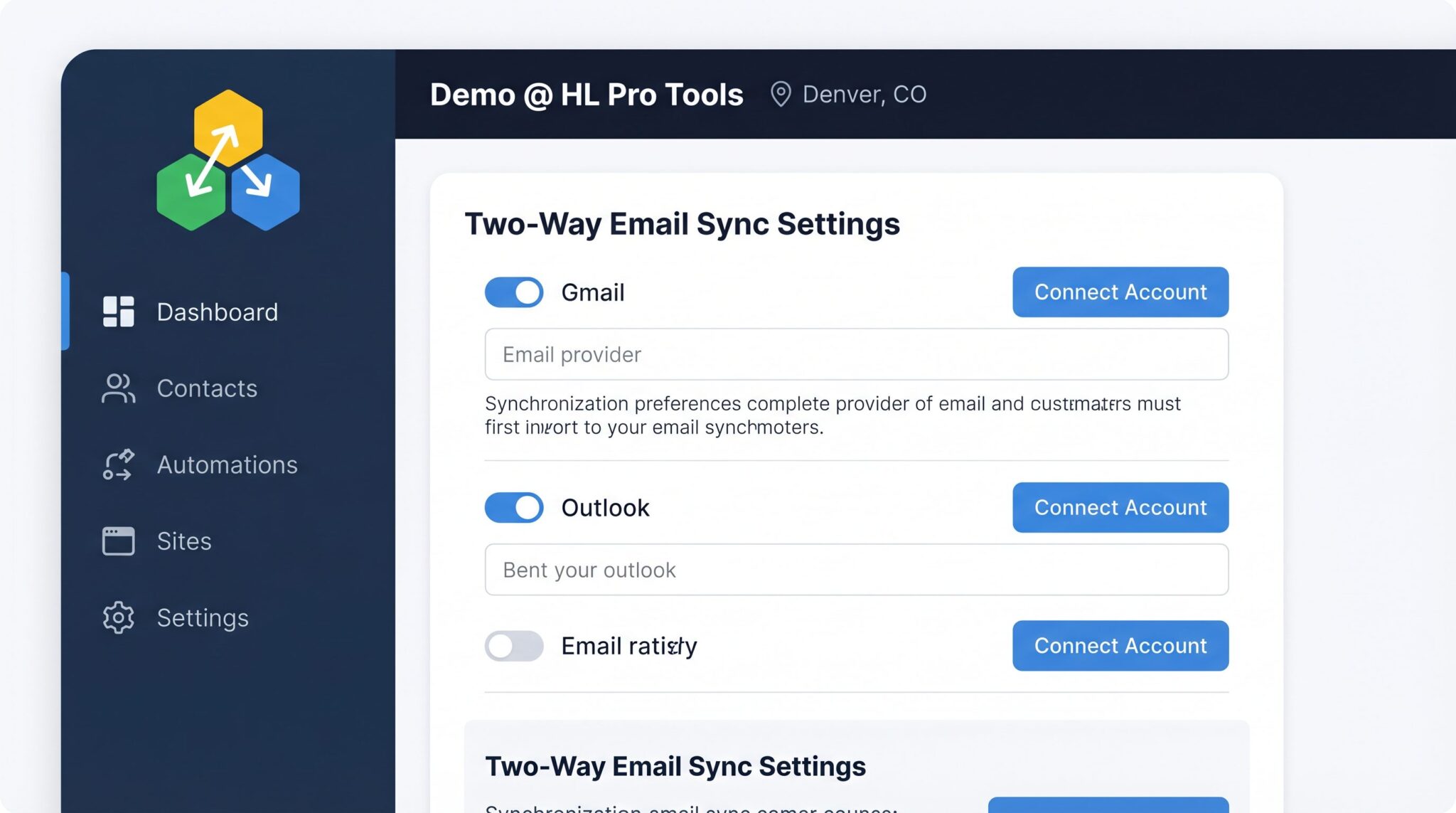
- Go to Settings > My Profile > General.
- Find the “Email (2-way-sync)” section.
- Click the Connect button next to the Outlook logo.
- Sign in to your Microsoft account when prompted.
- Authorize HighLevel to access your account by granting the required permissions.
That’s it! Your Outlook inbox is now connected and synced with your HighLevel account.
Pro Tip: If you use a different email provider, you can still forward your emails to HighLevel. Simply set up email forwarding in your email client to your unique HighLevel email address.
4. Managing Your Inbox Settings
Once your inbox is connected, you can manage your settings to optimize your workflow. HighLevel gives you control over how your emails are handled, ensuring a smooth and efficient communication process.
Conversation Management
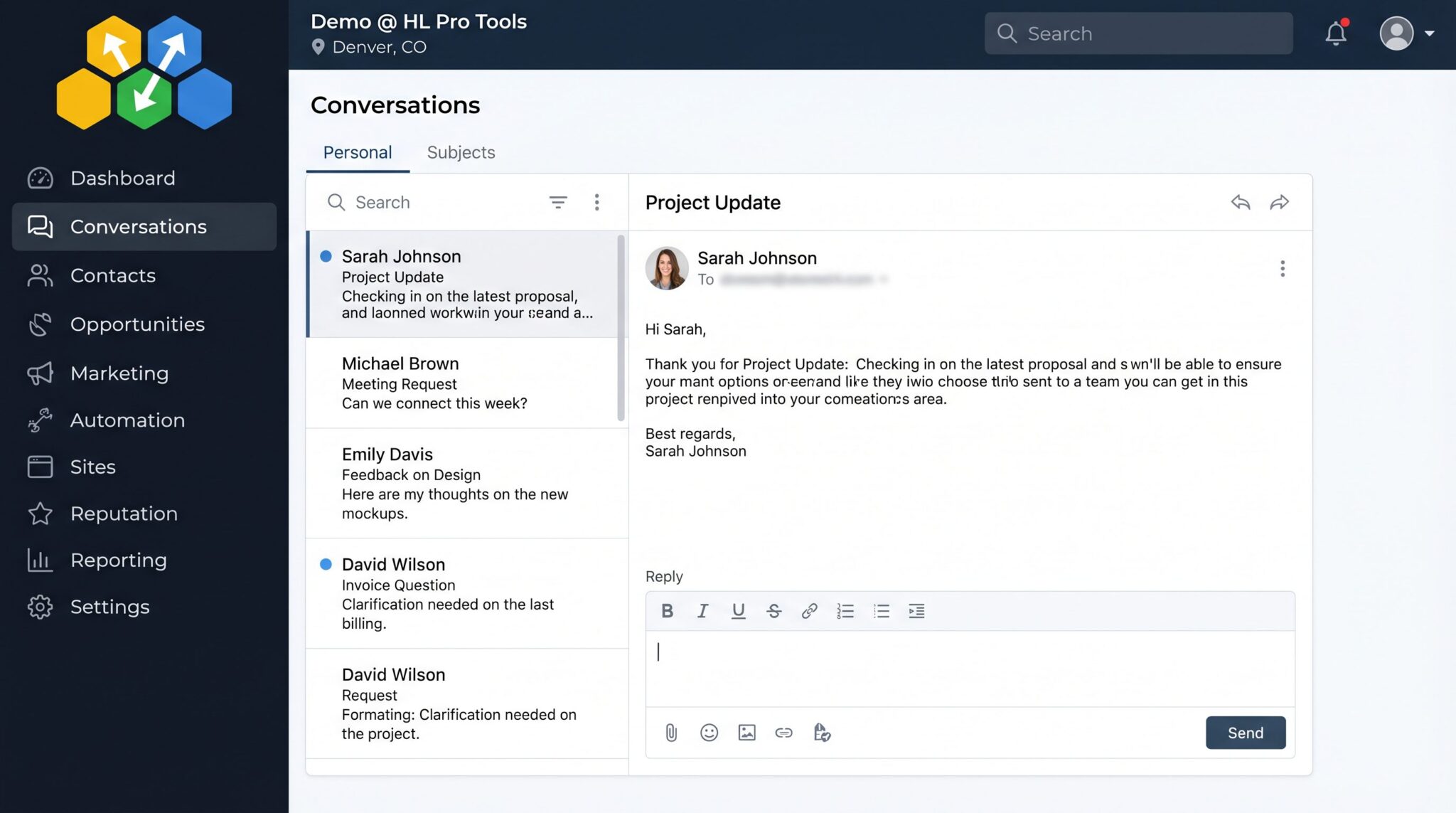
All your emails will now appear in the Conversations tab. From here, you can view, reply to, and manage all your email conversations without leaving HighLevel. This centralized view helps you stay on top of your client communication and respond promptly.
Configuring Your Email Signature
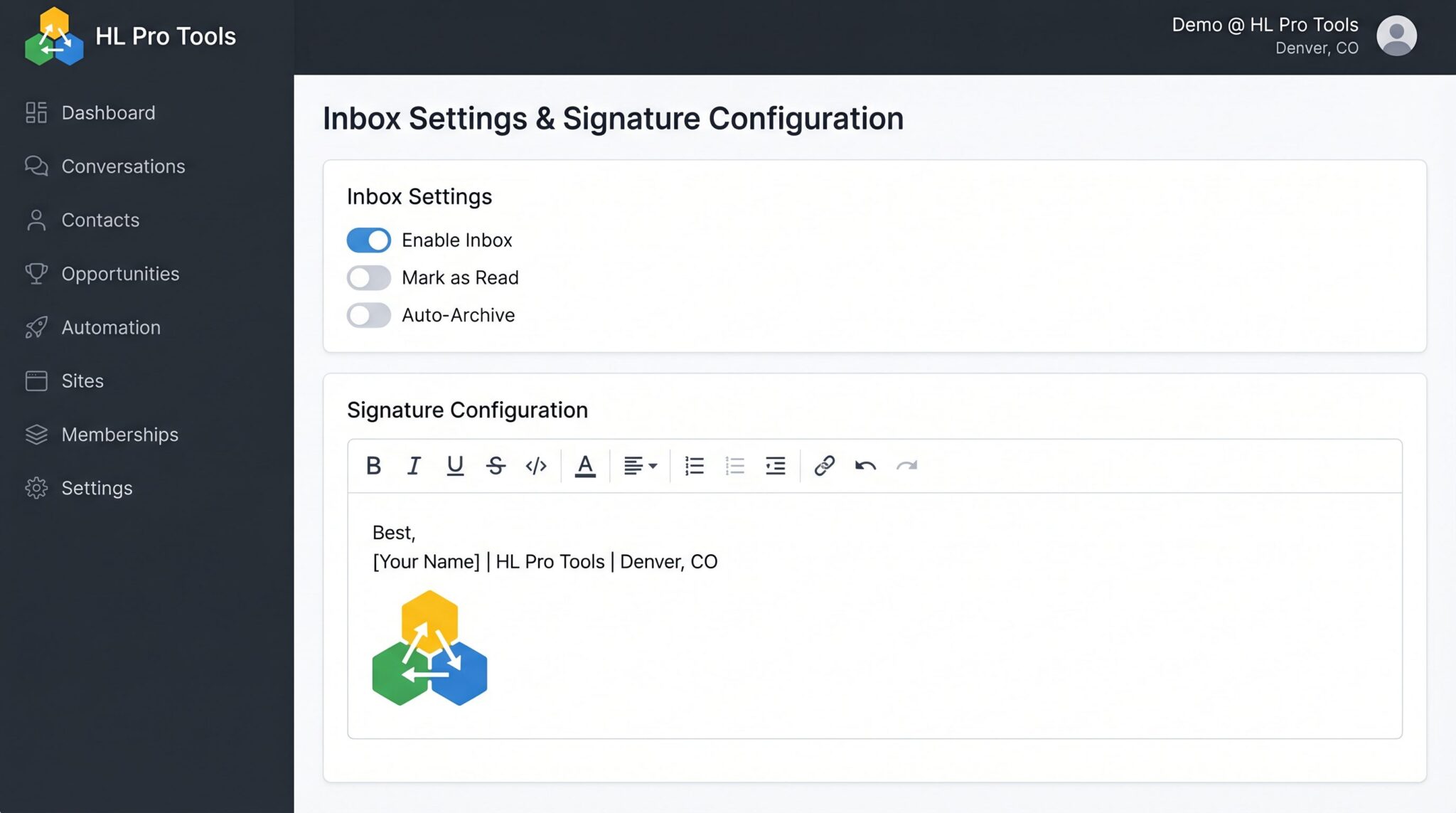
A professional email signature is a must. You can set up your signature in your HighLevel profile, and it will be automatically appended to all outgoing emails sent from the platform. To do this, go to Settings > My Profile and you will find the signature editor.
5. Understanding Two-Way Email Sync
The two-way sync feature is what makes the **HighLevel personal inbox** integration so powerful. It ensures that your HighLevel account and your email client are always on the same page.
How It Works
When you send an email from your connected inbox (e.g., Gmail or Outlook), it will automatically appear in the contact’s conversation history in HighLevel. Conversely, any email you send from HighLevel will show up in your email client’s sent folder. This seamless synchronization means you always have a complete record of your communications, no matter which platform you’re using.
Benefits of Two-Way Sync
- Real-time Updates: The sync is near real-time, so you’re always looking at the most current information.
- Attachment Syncing: Attachments are synced along with the emails, so you never lose important files.
- Improved Collaboration: If you have a team, everyone can see the same communication history, ensuring a consistent client experience.
Pro Tip: Use the HighLevel mobile app to manage your conversations on the go. The two-way sync ensures that your mobile experience is just as seamless as on your desktop.
Frequently Asked Questions (FAQ)
What if I use an email provider other than Gmail or Outlook?
While HighLevel offers direct integration for Gmail and Outlook, you can still use other email providers by setting up email forwarding. Simply forward your emails to your unique HighLevel email address to bring them into the platform.
Will connecting my inbox create duplicate contacts?
No, HighLevel is smart enough to associate incoming emails with existing contacts based on their email address. If a contact doesn’t exist, a new one will be created.
Can I connect multiple email inboxes?
Each user in your HighLevel account can connect their own personal inbox. This is perfect for teams where multiple people are communicating with clients.
Is my data secure when I connect my inbox?
Yes, HighLevel takes data security very seriously. The connection is made through secure authentication protocols (OAuth), and your data is encrypted both in transit and at rest.
How do I disconnect my inbox?
You can disconnect your inbox at any time by going to Settings > My Profile and clicking the Disconnect button next to your connected email account.
Conclusion
Connecting your **HighLevel personal inbox** is a simple yet powerful step towards a more streamlined and efficient workflow. By centralizing your client communications, you can save time, improve organization, and leverage HighLevel’s automation features to their full potential. Whether you’re a solo entrepreneur or part of a team, this integration is a must-have for any serious HighLevel user. Ready to take your communication to the next level? Connect your inbox today and experience the difference!
Frequently Asked Questions
Getting Started: Why Connect Your Personal Inbox?
You might be wondering why you should bother connecting your personal inbox to HighLevel. The answer is simple: efficiency. By integrating your email, you create a single source of truth for all your client communications. No more switching between your email client and HighLevel to keep track of conversations. Everything is in one place, giving you a holistic view of your interactions with each contact. This integration also enables powerful automation. You can trigger workflows based on email events, send automated follow-ups, and track the entire customer journey without missing a beat. It’s about working smarter, not harder.
What if I use an email provider other than Gmail or Outlook?
While HighLevel offers direct integration for Gmail and Outlook, you can still use other email providers by setting up email forwarding. Simply forward your emails to your unique HighLevel email address to bring them into the platform.
Will connecting my inbox create duplicate contacts?
No, HighLevel is smart enough to associate incoming emails with existing contacts based on their email address. If a contact doesn’t exist, a new one will be created.
Can I connect multiple email inboxes?
Each user in your HighLevel account can connect their own personal inbox. This is perfect for teams where multiple people are communicating with clients.
Is my data secure when I connect my inbox?
Yes, HighLevel takes data security very seriously. The connection is made through secure authentication protocols (OAuth), and your data is encrypted both in transit and at rest.
Start Your HighLevel Free Trial
Browse all GoHighLevel guides · HighLevel Conversations · HighLevel Email.