

Quick start
- Navigate to Marketing.
- Select Branded Content.
- Click on Brand Voice and configure your specific brand settings.
Follow the detailed steps below to complete the setup.
You are in the zone, building out a massive new campaign for a client. But then the friction hits.
You need to write three different emails, build a new lead magnet funnel, find an image for a Facebook ad, and check the CRM to see how many people attended last week’s webinar.
Suddenly, you have ChatGPT open in one window, Canva in another, and your HighLevel CRM buried somewhere in a sea of 25 browser tabs. Your brain is absolutely frying from context switching. What should have been a 30-minute sprint just turned into a two-hour headache.
That is the tab-switching tax, and it is quietly bleeding your agency’s margins dry.
Enter HighLevel’s Ask AI Assistant. This isn’t just some cute little chatbot tacked onto the side of the software. It is a full-blown, built-in AI workspace that lets you generate funnels, summarize contacts, write perfectly branded copy, and execute CRM commands, all using natural language, without ever leaving the platform. Let’s get your new AI employee dialed in.
Part 1: The Crucial Prep Work: Brand Voice
Before you start firing off commands, you need to make sure the AI actually sounds like your agency (or your client). If you skip this, your content will sound like a generic robot.
- Navigate to Marketing.
- Select Branded Content.
- Click on Brand Voice and configure your specific brand settings.
Note: Ask AI is available to all Agency Admins and Users. For Sub-accounts to access it, they need to be on the $97 Unlimited AI Employee Plan.
Part 2: Quick Access via the Top Navigation
Need a quick social post or a fast answer while you are deep in another workflow? The top navigation route is your fastest path to getting things done on the fly. Ready to streamline this? Here is exactly how to do it in 60 seconds:
1. Look at the top navigation bar and click on the Ask AI Bot icon.

2. Type in or speak what you need directly into the chat (e.g., “Give me blog post ideas about SMS marketing” or “Tag all contacts from last week’s webinar”).
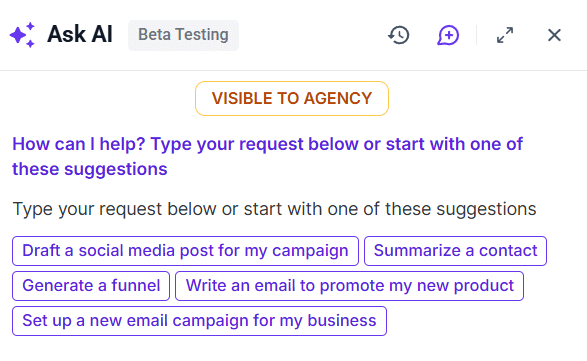
3. Let the bot instantly guide you or execute the action.
4. Need an old prompt? Click the toggle next to the full-screen toggle to view your chat history and jump back into older conversations.
Part 3: Deep Work in the Full-Screen Workspace
When you are ready to do some heavy lifting, like building out entire funnels, creating communities, or generating high volumes of content, you need focus. You need the dedicated workspace.
- Look at your left navigation panel (available at both the Agency and Sub-account levels).
- Click Ask AI (it appears as its own dedicated menu item).
- Welcome to the full-screen AI command center. From here, click New chat to start a fresh thread, or use Search to pull up previous conversations.
Part 4: High-Leverage Commands to Try Right Now
Stop clicking through menus and start giving orders. Here are a few high-leverage ways you can use Ask AI today:
- Create Funnels on the Fly: Type “Generate a lead magnet funnel” and let the AI guide you through building it using your templates and brand personalization.
- Summarize Contacts: Stop scrolling through endless communication logs. Just ask, “Summarize this contact,” and get the rundown on their payments, appointments, and tasks instantly.
- Generate and Edit Images: Need a graphic fast? Ask it to “Generate an image for a summer sale campaign,” and then tell it to “Edit this image to make it brighter.”
- Execute CRM Actions (MCP): Tell the AI to “List opportunities lost this week” or “Create a contact named John Doe with phone number 555-1234.”
Stop paying the tab-switching tax. Centralize your workflow, lean on your built-in AI, and get back to actually scaling your agency.
Frequently Asked Questions
What should I know about the Crucial Prep Work: Brand Voice?
Before you start firing off commands, you need to make sure the AI actually sounds like your agency (or your client). If you skip this, your content will sound like a generic robot. Navigate to Marketing. Select Branded Content. Click on Brand Voice and configure your specific brand settings. Note: Ask AI is available to all Agency Admins and Users. For Sub-accounts to access it, they need to be on the $97 Unlimited AI Employee Plan.
What should I know about quick Access via the Top Navigation?
Need a quick social post or a fast answer while you are deep in another workflow? The top navigation route is your fastest path to getting things done on the fly. Ready to streamline this? Here is exactly how to do it in 60 seconds: 1. Look at the top navigation bar and click on the Ask AI Bot icon. 2. Type in or speak what you need directly into the chat (e.g., “Give me blog post ideas about SMS marketing” or “Tag all contacts from last week’s webinar”). 3. Let the bot instantly guide you or execute the action. 4. Need an old prompt? Click the toggle next to the full-screen toggle to view your chat history and jump back into older conversations.
What should I know about deep Work in the Full-Screen Workspace?
When you are ready to do some heavy lifting, like building out entire funnels, creating communities, or generating high volumes of content, you need focus. You need the dedicated workspace. Look at your left navigation panel (available at both the Agency and Sub-account levels). Click Ask AI (it appears as its own dedicated menu item). Welcome to the full-screen AI command center. From here, click New chat to start a fresh thread, or use Search to pull up previous conversations.
Start Your HighLevel Free Trial
Browse all GoHighLevel guides · AI & Chatbots.