

If you are using a Facebook Pixel to track events for your ads, you will want to add the Pixel code to your funnel and funnel steps in HighLevel.
What you will need:
- Facebook Pixel Code
- Events you want to track
Step 1: Add Pixel Code to Funnel in HighLevel
- Copy the main pixel code from your Facebook Events Manager
- Navigate to your Funnel.
- Click Settings –> Paste in your Pixel Code to the Head Tracking Code Section.
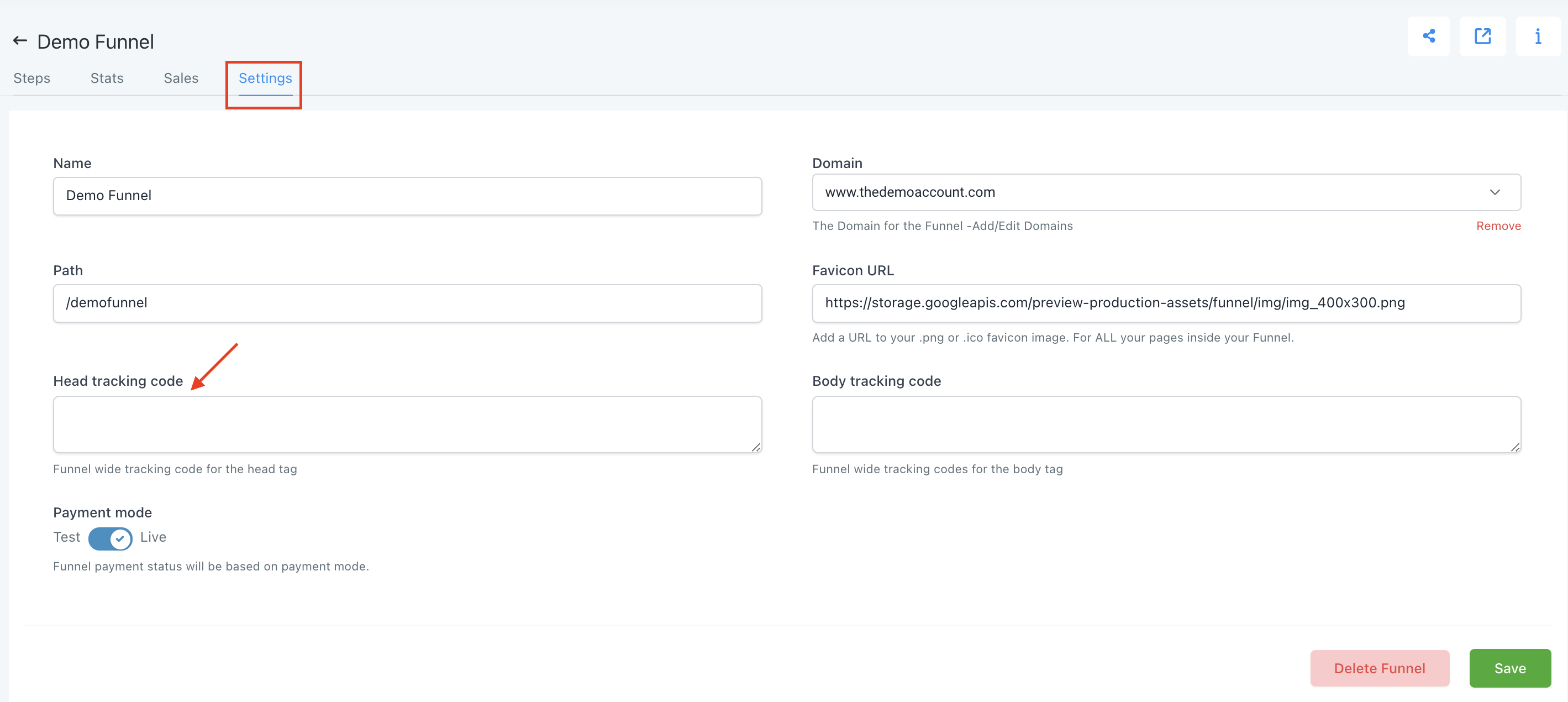
- Save your changes.
Step 2: Add in Event Specific Code to Individual Pages
- Choose the Step where the event in question is occurring (e.g. Lead would occur after an Opt In)
- Edit the Step.
- Choose Settings –> Tracking Code.
- Click Footer Code and paste in the Event Code.
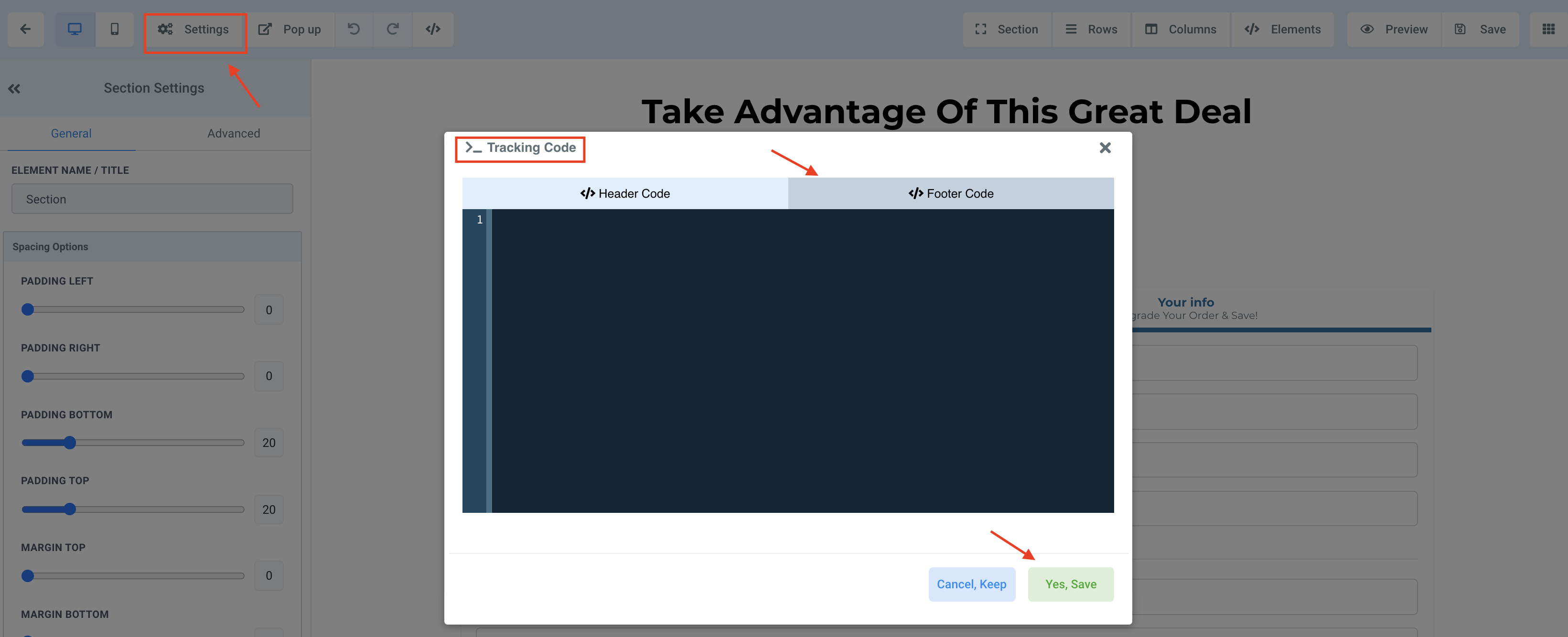
- Save your Changes.
RESOURCES:
Facebook Pixel Code (insert your ID in the IDHERE part of the code):
<!– Facebook Pixel Code –>
<script>
!function(f,b,e,v,n,t,s)
{if(f.fbq)return;n=f.fbq=function(){n.callMethod?
n.callMethod.apply(n,arguments):n.queue.push(arguments)};
if(!f._fbq)f._fbq=n;n.push=n;n.loaded=!0;n.version=’2.0′;
n.queue=[];t=b.createElement(e);t.async=!0;
t.src=v;s=b.getElementsByTagName(e)[0];
s.parentNode.insertBefore(t,s)}(window, document,’script’,
‘https://connect.facebook.net/en_US/fbevents.js’);
fbq(‘init’, ‘IDHERE’);
fbq(‘track’, ‘PageView’);
</script>
<noscript><img height=”1″ width=”1″ style=”display:none”
src=”https://www.facebook.com/tr?id=IDHERE’&ev=PageView&noscript=1″
/></noscript>
<!– End Facebook Pixel Code –>
Facebook Event Code:
<script>
fbq(‘track’, ‘EVENTHERE’);
</script>
List of Facebook Standard Events:
Frequently Asked Questions
What does “How to Add Facebook Pixel to a HighLevel Website” cover?
If you are using a Facebook Pixel to track events for your ads, you will want to add the Pixel code to your funnel and funnel steps in HighLevel.
Start Your HighLevel Free Trial
Browse all GoHighLevel guides · HighLevel Social Planner · HighLevel Website.