

A meta tag for your Google site verification needs to be added to the ‘Default Page’ which is connected to the domain.
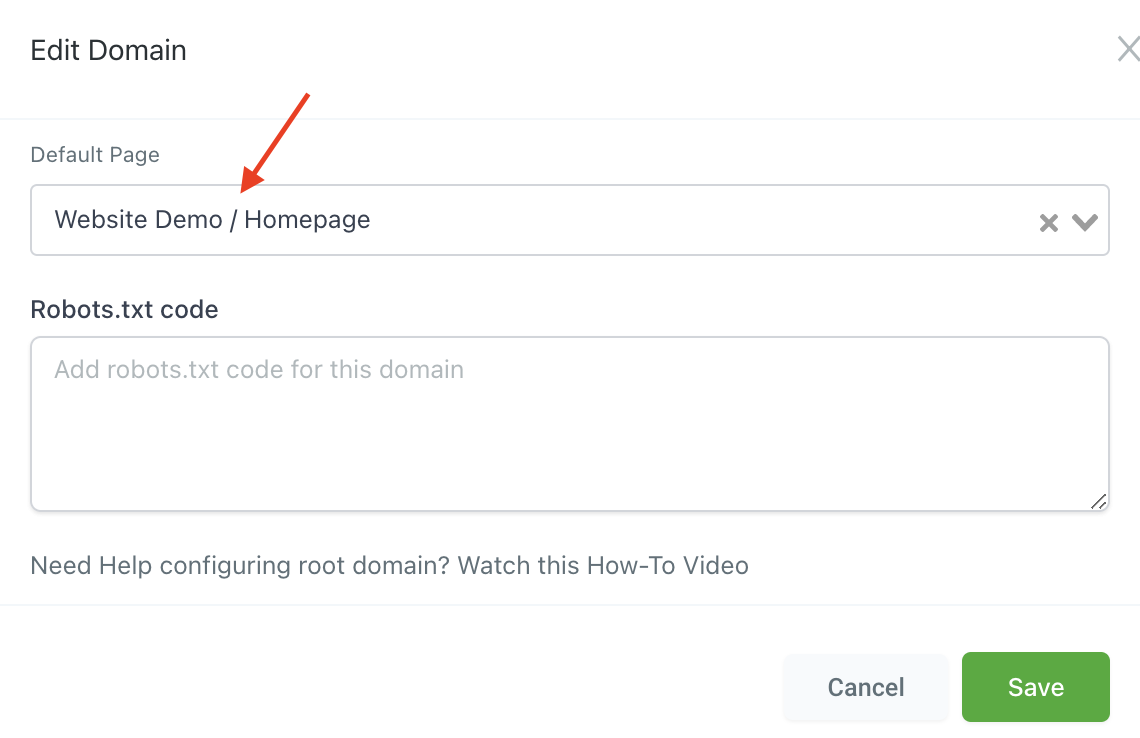
Step 1: Determine the Default Page in HighLevel
- Navigate to Settings > Domains in HighLevel.
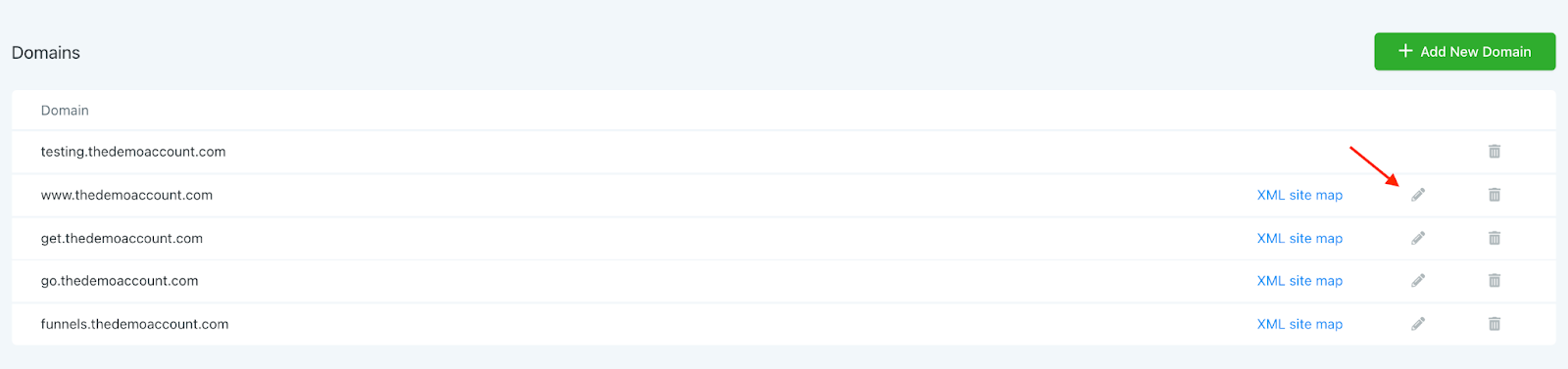
- Click in to edit a domain so you can see which default page it is connected to.
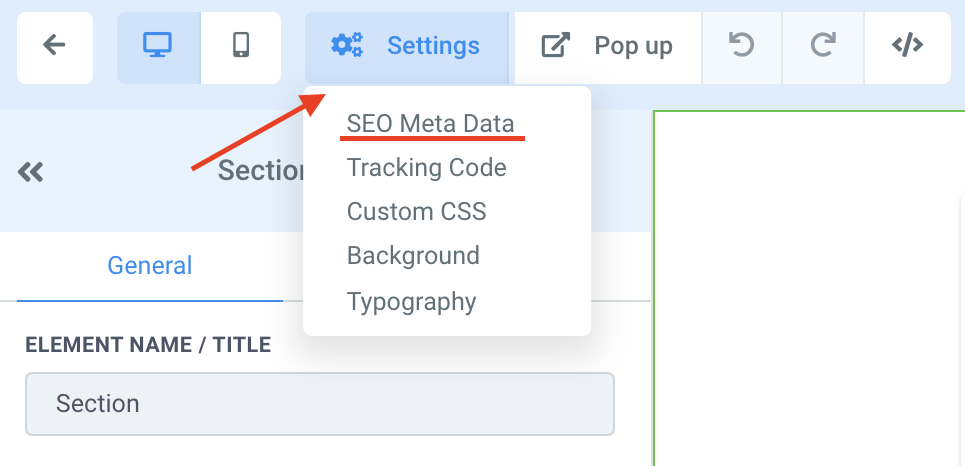
- Navigate to Sites and go to the page builder for the default page connected to the domain, and open Settings > SEO Meta Deta.
Step 2: Add a new Custom Meta Tag in the SEO Meta Data
- Copy the name from within the meta tag and add it to the name field.
- In this example, the tag is <meta name=”google-site-verification” content=”examplenumer11223344″ /> – so I will add the name: google-site-verification
- Copy the content “examplenumer11223344” and add it to the content field
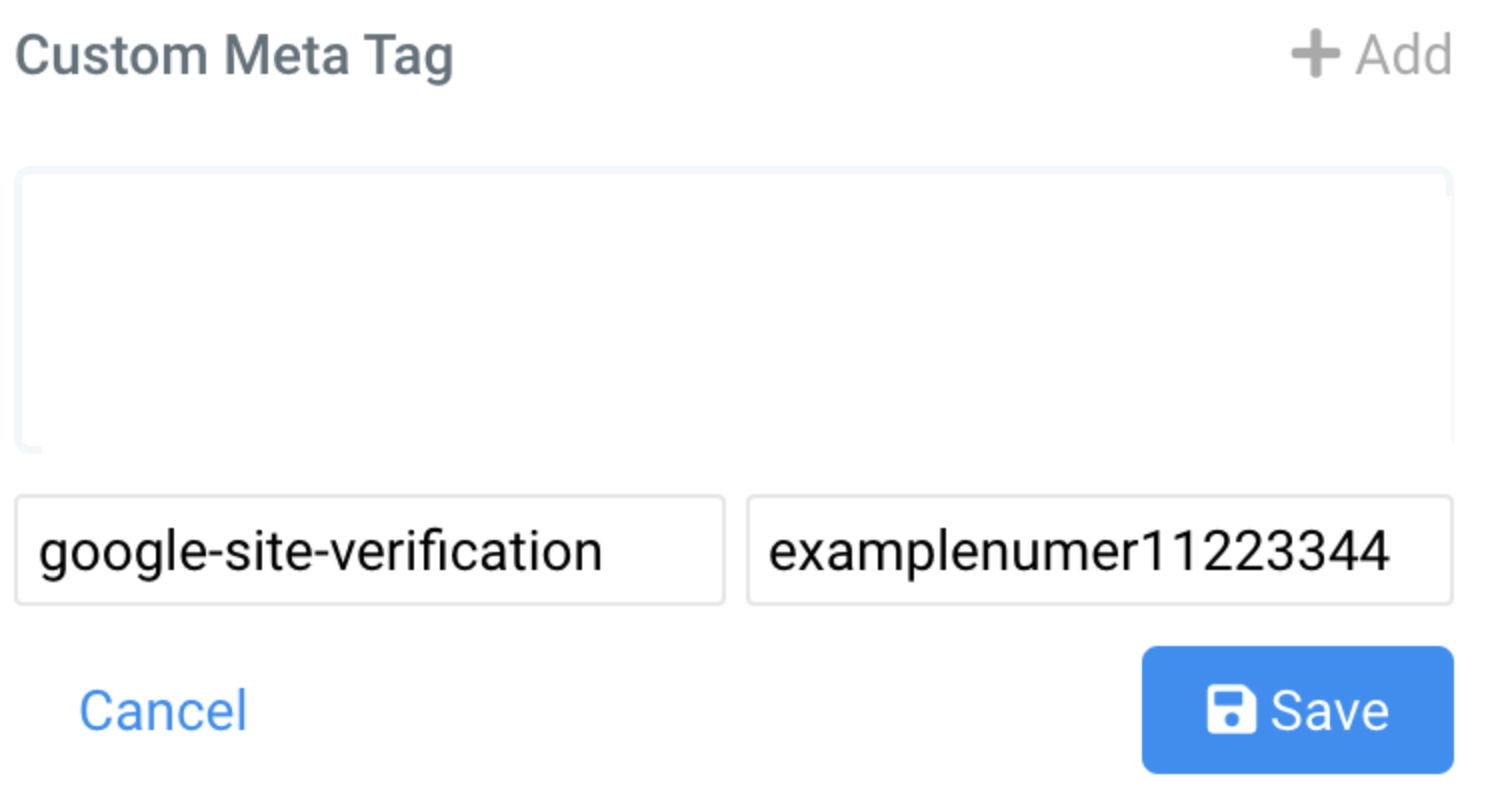
- Save the tag, and then update meta data
- Save the page
Your domain should now get verified successfully on the Google Search Console.
Frequently Asked Questions
What does “How to Add a Meta Tag for Google Search Console Domain Verification in HighLevel” cover?
A meta tag for your Google site verification needs to be added to the ‘Default Page’ which is connected to the domain.
Start Your HighLevel Free Trial
Browse all GoHighLevel guides · HighLevel Domains.