

Sticky Contact allows you to save cookie/s from a lead and sync all the information across multiple forms/surveys that they had previously entered. This is especially useful if you have an initial opt-in leading to a calendar/appointment page or a 2 Step Order Form
Step 1: How to Toggle Sticky Contact On and Off in HighLevel
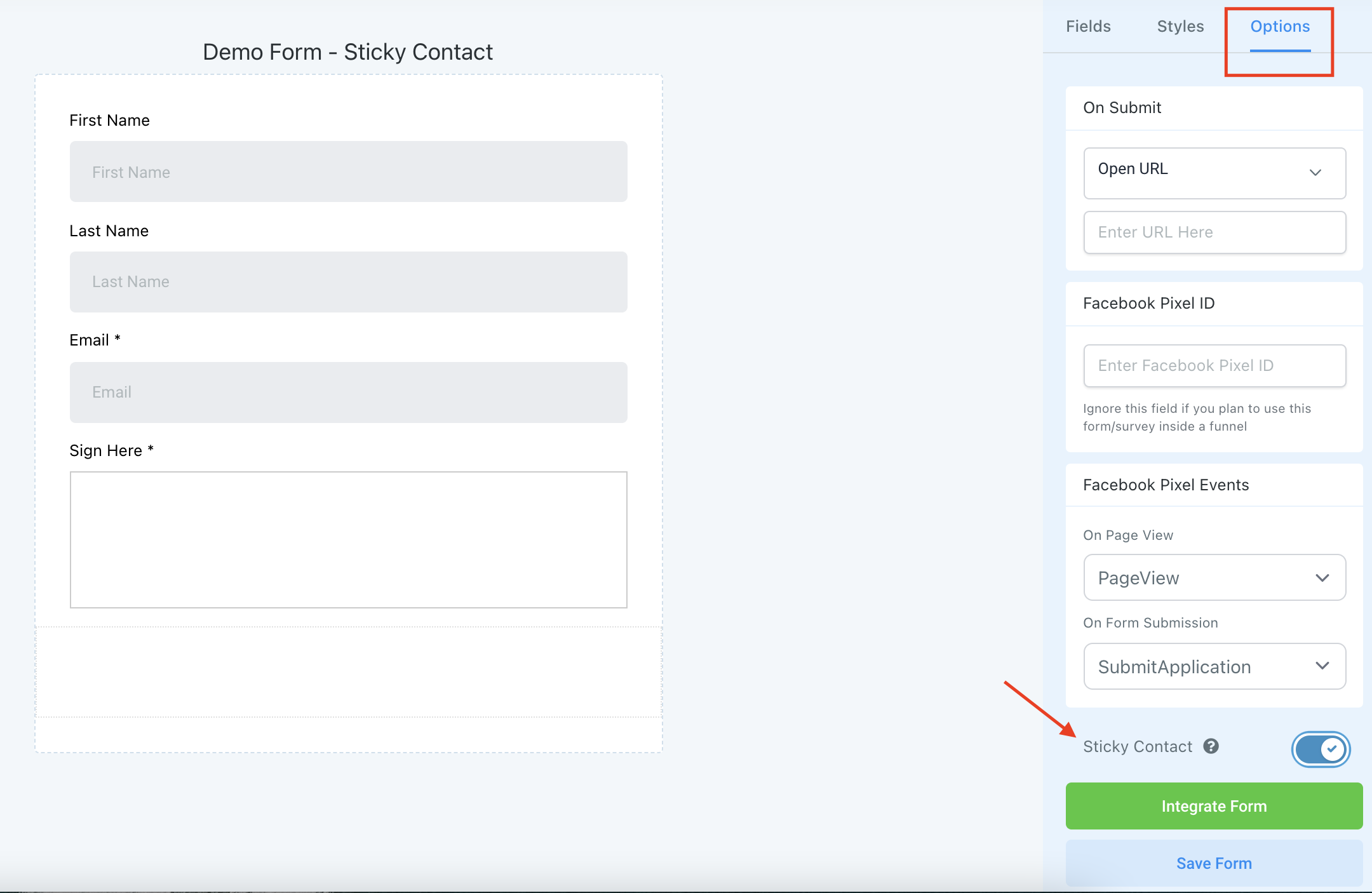
- Open up an existing form/survey or create a new one.
- Navigate to Options, scroll to the bottom, toggle on/off Sticky Contact
NOTE: If you are filling out a form for a lead (e.g. if you’re texting with them or on the phone with them) that has sticky contact enabled, ensure that you use incognito mode in your browser. If you do not, every time you open that form/survey (until you clear your cache), the previous lead’s information will populate and the software will think that lead is trying to enter HighLevel again.
Frequently Asked Questions
What does “How The Sticky Contact Feature Works within HighLevel” cover?
Sticky Contact allows you to save cookie/s from a lead and sync all the information across multiple forms/surveys that they had previously entered. This is especially useful if you have an initial opt-in leading to a calendar/appointment page or a 2 Step Order Form
Start Your HighLevel Free Trial
Browse all GoHighLevel guides · HighLevel Contacts.