

Is there anything better than landing on a website and seeing a bunch of easy ways to interact?
For me, chat widgets are where it’s at. Filling out a boring old form? Not my thing. I’d much rather chat, get real-time responses, and keep things moving.
And if you’re thinking, “Yeah, but chat widgets must be a nightmare to set up!”
Nope. HighLevel makes it stupidly easy to set up a chat widget—and I’ll walk you through it, step by step.
By the end of this post, you’ll have a fully functional chat widget on your site, ready to engage visitors and capture leads like a pro. Let’s dive in!
Want to see how it’s done in real time? Check out the interactive tutorial below!
Step 1: Access the Chat Widget Settings
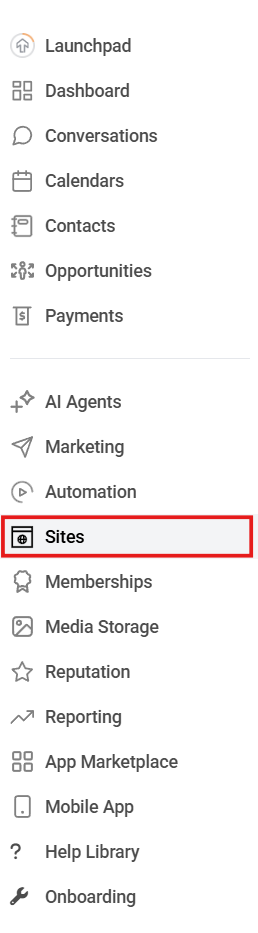
First things first: log in to HighLevel and head over to:
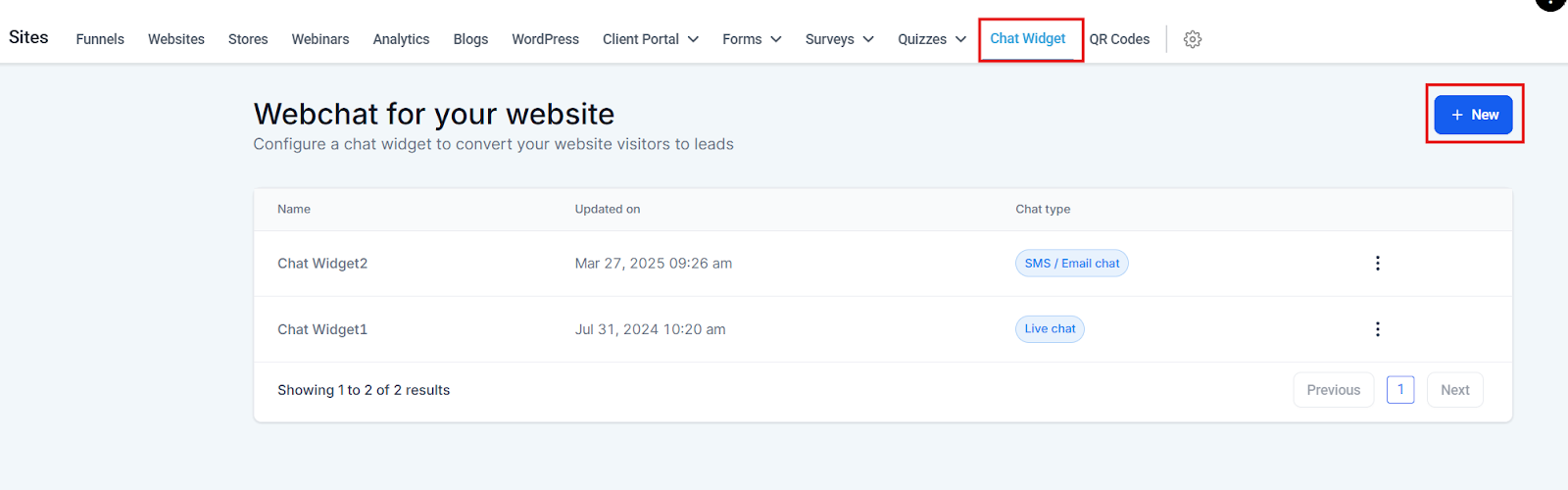
Sites → Chat Widget
Once you’re in, click “New” to create a fresh chat widget.
Step 2: Choose Your Chat Type
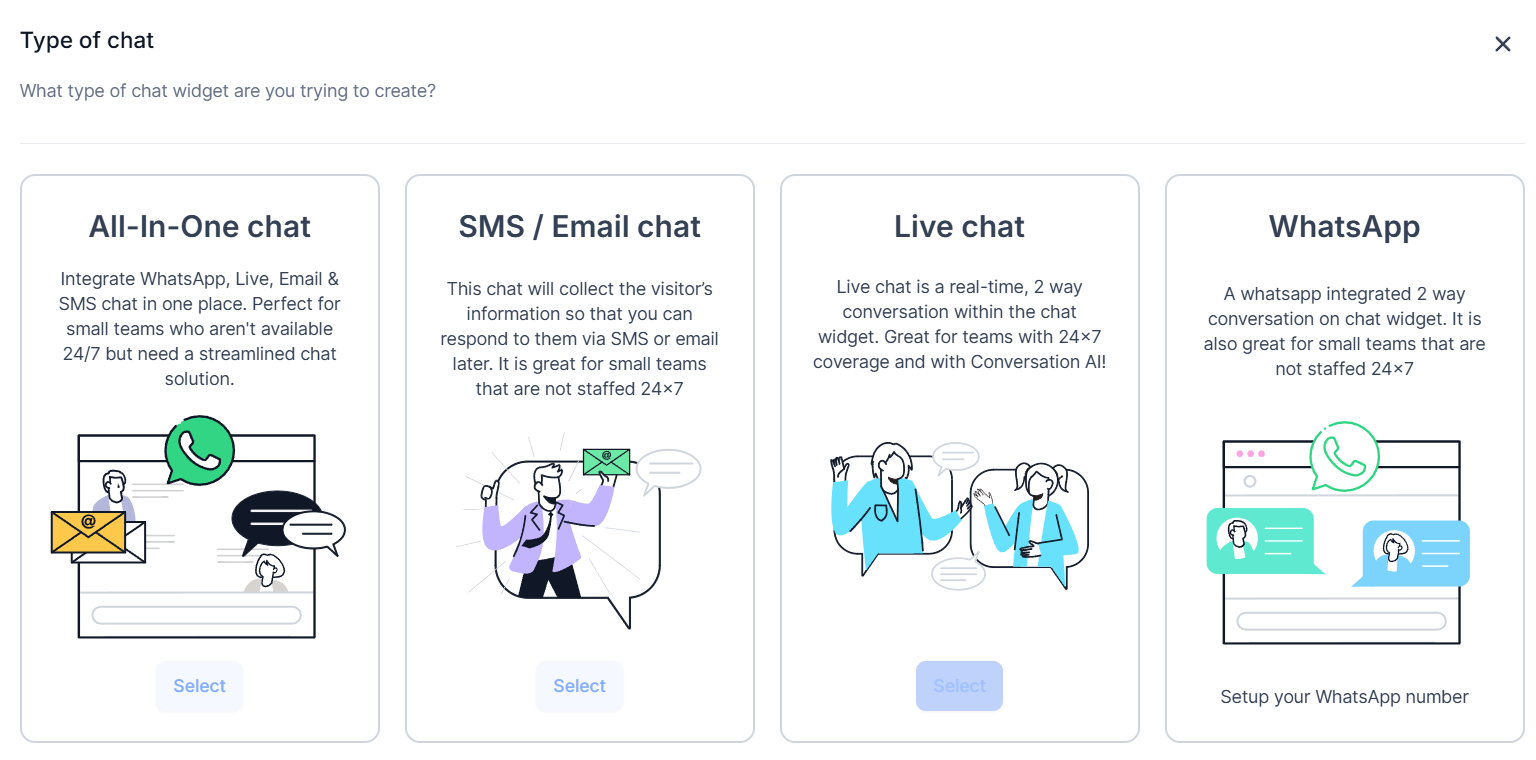
You’ve got four options:
✅ All-In-One chat – Perfect for small teams looking for a streamlined solution.
✅ SMS/Email Widget – Perfect for follow-ups and capturing leads.
✅ Live Chat – Great for real-time conversations.
✅ WhatsApp Chat – If your audience loves WhatsApp, this one’s for you.
Pick the one that fits your business best, and let’s move on.
Step 3: Customize Your Chat Widget
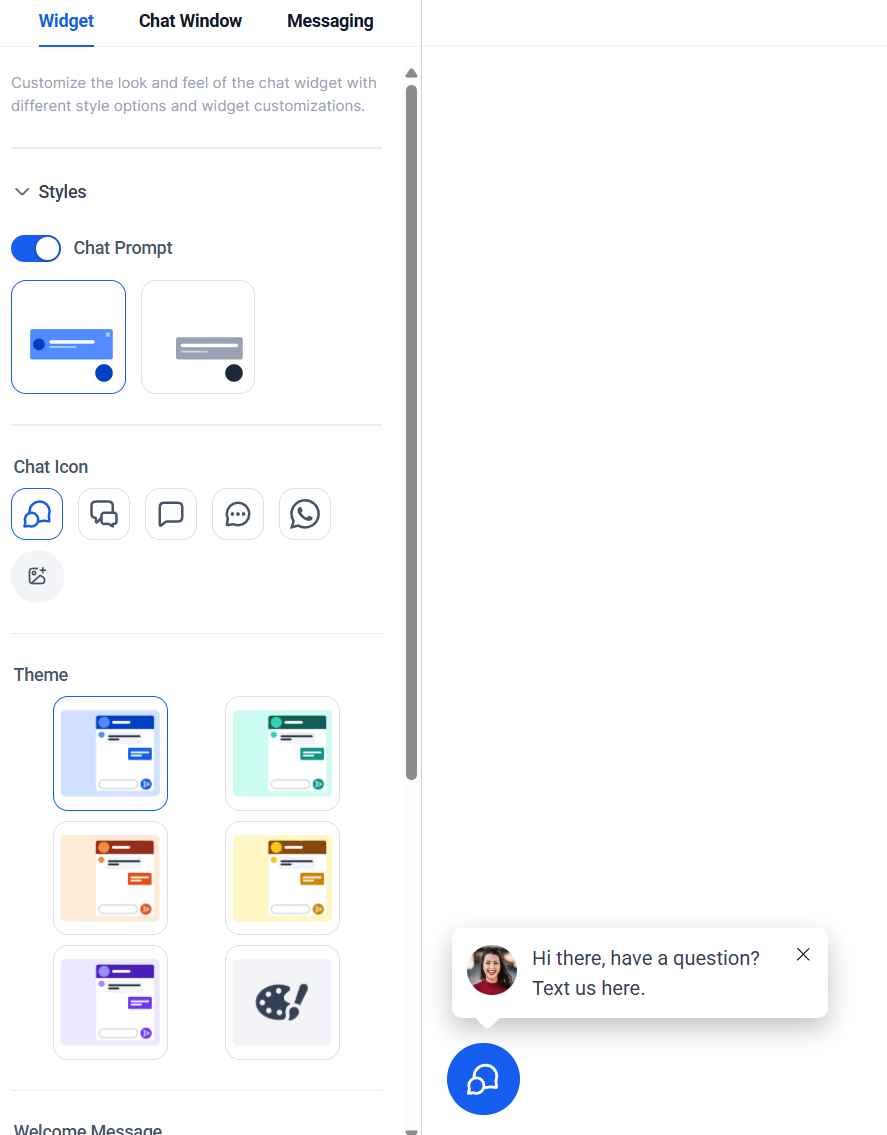
You’ll be sent to the widget editor. Click Widget.
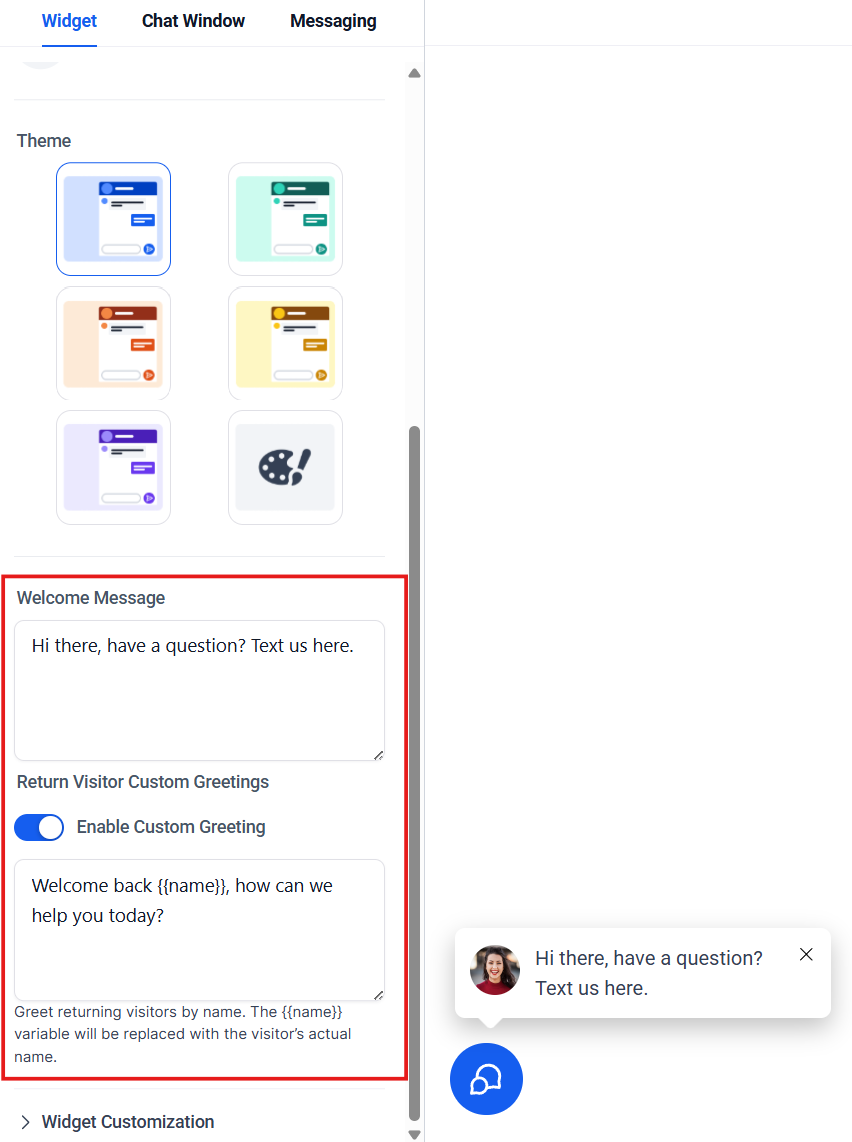
This is where the magic happens. HighLevel gives you full control over how your chat widget looks and functions. Here’s what you can tweak:
🎨 Style
- Choose from different themes.
- Show or hide avatar images (think brand-friendly or personal touch).
- Set a welcome message for new users.
- Personalize responses for returning visitors.
- Adjust placement & size to fit your website perfectly.
💬 Chat Window
- Enable a chat prompt or keep it minimal.
- Pick the icon style and color.
- Customize the chat theme to match your brand.
👋 First-Time & Returning Visitors
- Set a welcome message for new users.
- Personalize responses for returning visitors.
📍 Widget Placement & Dimensions
- Let it auto-fit or customize the width & height manually.
Step 4: Configure the Chat Window
Click “Chat Window.”
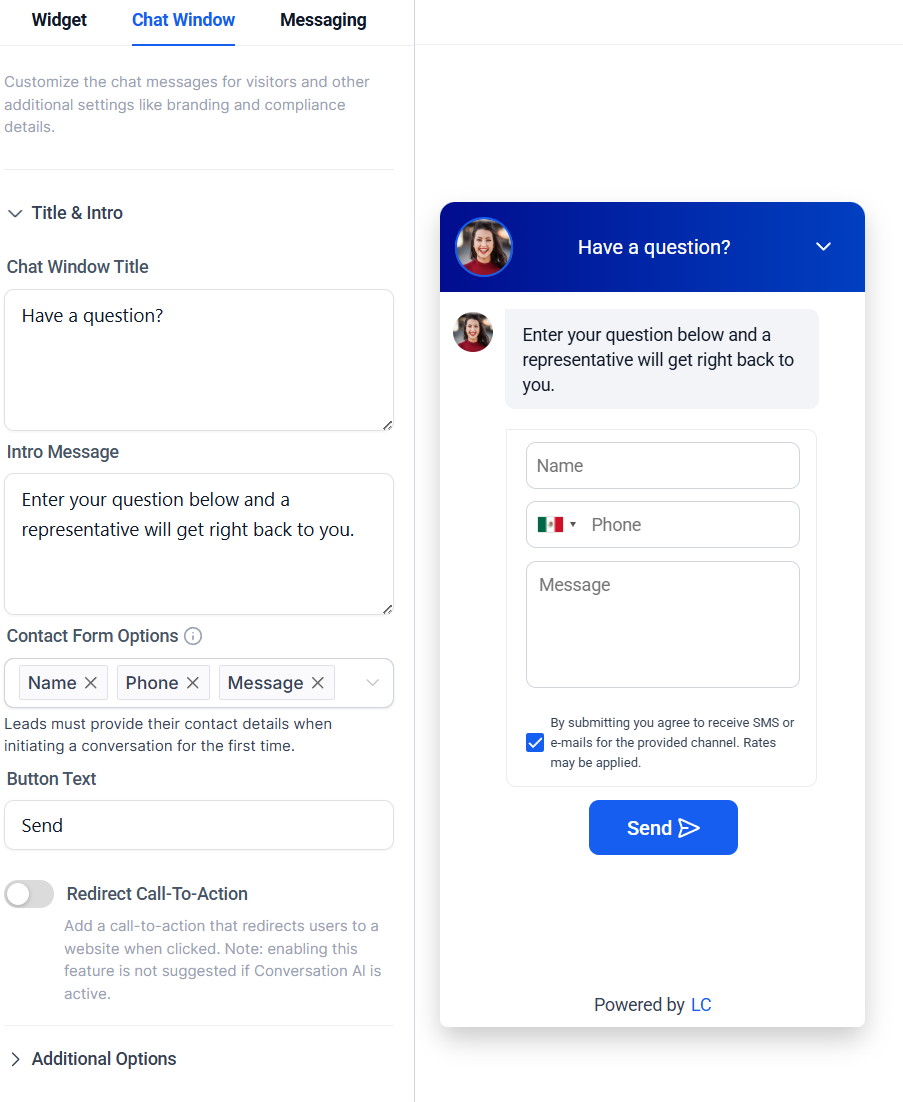
This is where you set up everything your visitors will see inside the chat window.
📢 What You Can Customize:
✔️ Chat window title (ex: “Chat with us!”)
✔️ Intro message (ex: “Hey there! How can we help?”)
✔️ Contact Form Options
✔️ Branding & compliance (HIPAA settings if needed)
Step 5: Set Up Messaging & Language
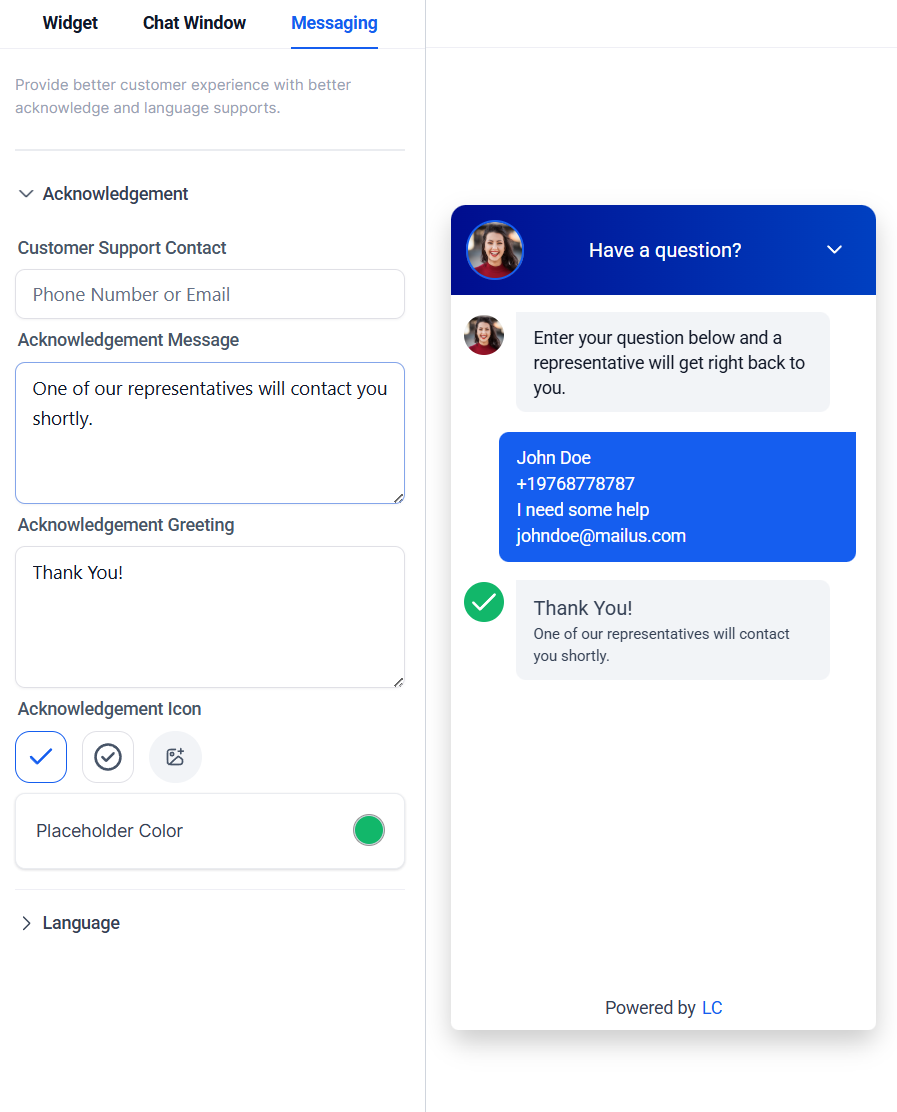
Finally, dial in the tone and language of your chat experience:
📌 Key Settings:
✅ Add support contact details
✅ Customize the acknowledgment message
✅ Choose the chat widget language
Once you’re happy with everything, hit save—and boom, your chat widget is live! 🎉
Why Every Business Needs a Chat Widget
If you’re serious about capturing leads, engaging visitors, and providing instant support, a chat widget is a must-have.
And the best part? HighLevel makes it ridiculously easy. No coding. No headaches. Just a few clicks, and you’re good to go.
Setting up your chat widget should be quick and painless, but hey—we get it. Sometimes, you just want someone to walk you through it or troubleshoot a weird issue.
Frequently Asked Questions
How do I access the Chat Widget Settings?
First things first: log in to HighLevel and head over to: Sites → Chat Widget Once you’re in, click “New” to create a fresh chat widget.
How do I choose my Chat Type?
You’ve got four options: ✅ All-In-One chat – Perfect for small teams looking for a streamlined solution.✅ SMS/Email Widget – Perfect for follow-ups and capturing leads.✅ Live Chat – Great for real-time conversations.✅ WhatsApp Chat – If your audience loves WhatsApp, this one’s for you. Pick the one that fits your business best, and let’s move on.
How do I customize my Chat Widget?
You’ll be sent to the widget editor. Click Widget. This is where the magic happens. HighLevel gives you full control over how your chat widget looks and functions. Here’s what you can tweak: 🎨 Style Choose from different themes. Show or hide avatar images (think brand-friendly or personal touch). Set a welcome message for new users. Personalize responses for returning visitors. Adjust placement & size to fit your website perfectly. 💬 Chat Window Enable a chat prompt or keep it minimal. Pick the icon style and color. Customize the chat theme to match your brand. 👋 First-Time & Returning Visitors Set a welcome message for new users. Personalize responses for returning visitors. 📍 Widget Placement & Dimensions Let it auto-fit or customize the width & height manually.