

You can update an appointment status based on tags, which may be useful for your business and any automations you run within HighLevel. Here’s a recommended best-practice for updating appointment statuses based on tags, specifically related to the Invalid Status.
Part 1: Set up a tag for invalid appointments in HighLevel.
- Step 1: Create a tag called “Invalid Appointment”.
Part 2: Create a tag-based trigger.
- Step 1: Create a new trigger. Under Step 1 in the trigger, set it up like the screenshot above, so that the action will be triggered by the Contact Tag “Invalid Appointment” being added.
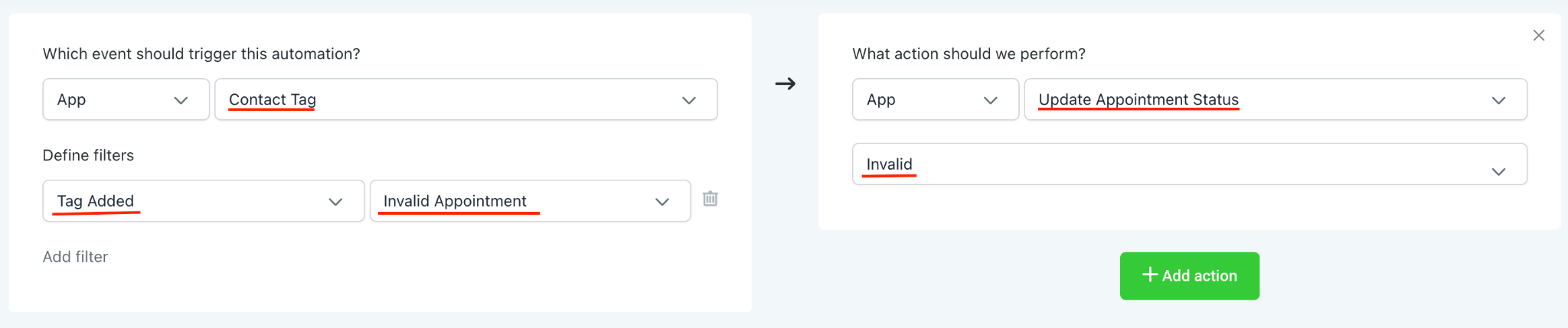
- Step 2: Set the action to be “Update Appointment Status” and choose “Invalid”.
- Step 3: Make the trigger active and save it, in the top righthand corner and save
Part 3: Using the Tag and Trigger
- Step 1: When you have a contact with an invalid appointment, add the “Invalid Appointment” tag and the trigger will run, updating their appointment status to “Invalid”.
Frequently Asked Questions
What does “How To Mark Appointment Status as Invalid Using Triggers within HighLevel” cover?
You can update an appointment status based on tags, which may be useful for your business and any automations you run within HighLevel. Here’s a recommended best-practice for updating appointment statuses based on tags, specifically related to the Invalid Status.
Start Your HighLevel Free Trial
Browse all GoHighLevel guides · HighLevel Calendars · HighLevel Automations.