

There’s nothing more satisfying than scrolling through a killer ad carousel.
You know what I’m talking about—those ads that make you STOP scrolling just to see what’s next.
I know it’s an ad. I don’t care. I NEED to see the next image.
That’s exactly the reaction I want people to have when they see MY ads.
And guess what? Creating scroll-stopping carousel ads in HighLevel is ridiculously easy.
You can have one up and running in less than 5 minutes. Let me show you how.
What Are Carousel Ads
Carousel ads let you showcase multiple images or videos in a single ad.
Think of them as mini-storytelling machines—you can:
✅ Highlight multiple products
✅ Show different features of a single product
✅ Tell a story that unfolds with each swipe
Instead of a boring, static ad, you create something engaging, interactive, and impossible to ignore.
Why Are Carousel Ads Better Than Static Ads?
📈 Higher Engagement – People LOVE to swipe. More swipes = more time on your ad.
💰 Better Click-Through Rates (CTR) – More options = higher chance someone clicks.
📱 Perfect for Mobile – Designed for easy swiping on mobile screens.
💲 Cost-Effective – Show multiple products without running multiple ads.
Basically, if you’re not using carousel ads, you’re leaving money on the table.
How to Create a Carousel Ad in HighLevel
Step 1: Choose the Carousel Format
- On Marketing, go to the Ad Manager, and select Create Campaign.
- There, select Start from Scratch
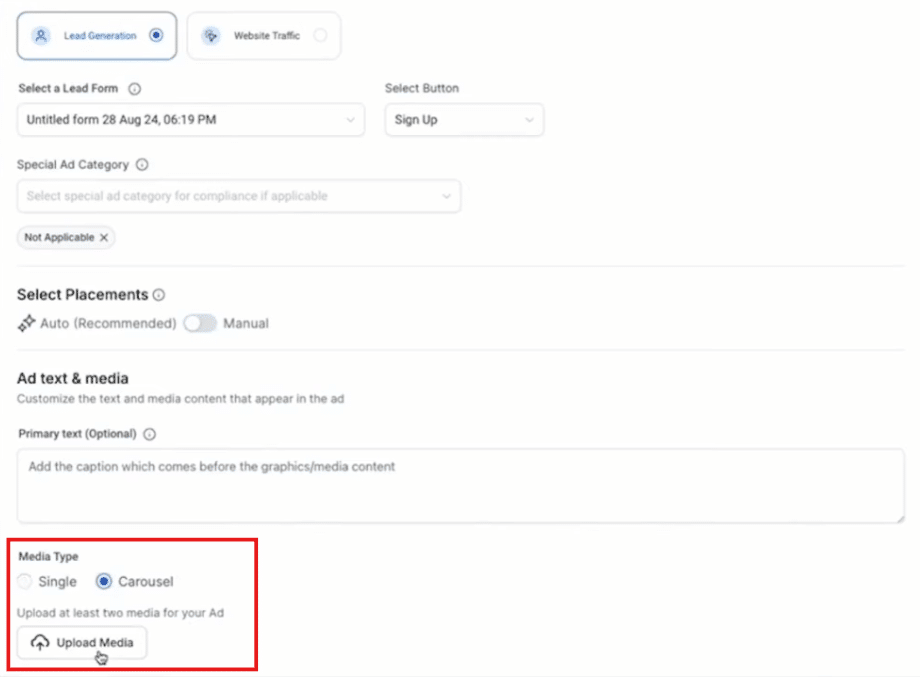
- Under Media Type, select Carousel.

Step 2: Upload Your Images or Videos
- Add your basic info and objectives.
- On Media Type, select Carousel.
- Click “Upload Media.”
- Select multiple images or videos (up to 10 per campaign).
- Click “Insert Files” to add them to your ad.
Step 3: Add Headlines & Descriptions
- Each image/video gets its own headline and description.
- Reorder the images/videos to match the story you want to tell.
Remember to review your content and headlines on the right side panel.
Important: You CANNOT publish the ad if any media is missing a headline.
Step 4: Customize Video Thumbnails
- Click on an uploaded video.
- Choose the thumbnail you want to display in the ad.
Step 5: Review & Publish
- Move to Budget as you would with any other add
- Make final tweaks under the Review & Publish section.
- Hit PUBLISH, and you’re live! 🚀
A Few Pro Tips
💡 Make the First Image Stand Out – The first slide needs to grab attention FAST.
💡 Use a Narrative Flow – Don’t just throw in random images. Tell a story.
💡 Test Different Orders – Reordering images can boost engagement—test what works best.
Final Thoughts
Carousel ads aren’t just better than static ads—they’re a game-changer.
Frequently Asked Questions
Why Are Carousel Ads Better Than Static Ads?
📈 Higher Engagement – People LOVE to swipe. More swipes = more time on your ad.💰 Better Click-Through Rates (CTR) – More options = higher chance someone clicks.📱 Perfect for Mobile – Designed for easy swiping on mobile screens.💲 Cost-Effective – Show multiple products without running multiple ads. Basically, if you’re not using carousel ads, you’re leaving money on the table.
What Are Carousel Ads?
Carousel ads let you showcase multiple images or videos in a single ad. Think of them as mini-storytelling machines—you can:✅ Highlight multiple products✅ Show different features of a single product✅ Tell a story that unfolds with each swipe Instead of a boring, static ad, you create something engaging, interactive, and impossible to ignore.
How do I choose the Carousel Format?
On Marketing, go to the Ad Manager, and select Create Campaign. There, select Start from Scratch Under Media Type, select Carousel.
Start Your HighLevel Free Trial
Browse all GoHighLevel guides · Marketing.