

Quick start
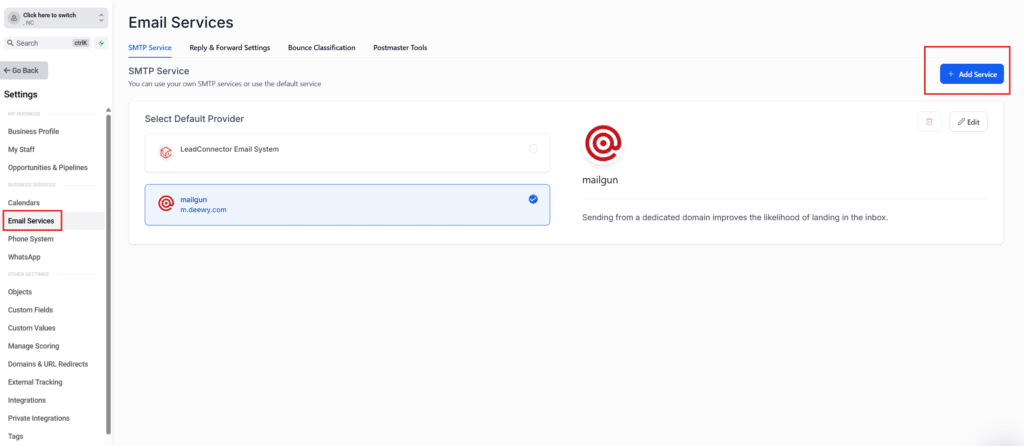
- Open up HighLevel, go to Settings, and select Email Services.
- Locate the Add Service section.
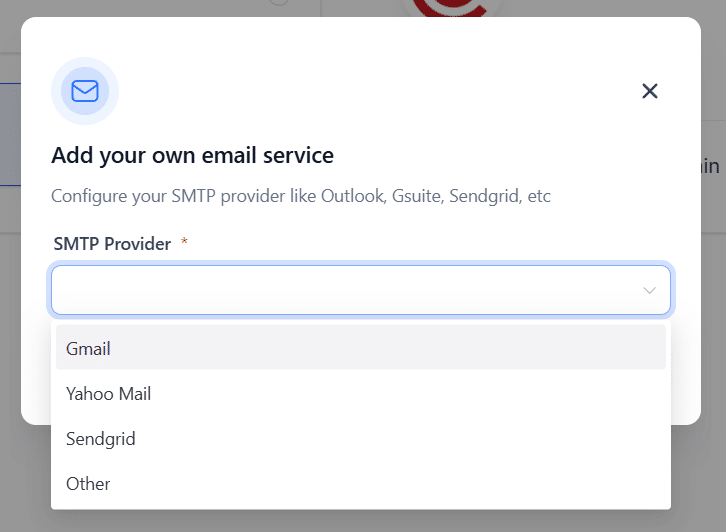
- Choose your platform, Gmail or Outlook, and click Connect.
Follow the detailed steps below to complete the setup.
We’ve all been there. You’re working a massive deal, and the prospect emails your personal Gmail with a crucial question. You quickly reply from your phone while grabbing coffee.
The problem? Your team, who is managing the pipeline inside HighLevel, has absolutely no idea this conversation just happened. The next day, a generic automated follow-up blasts the prospect, making your agency look completely disorganized.
Fragmented inboxes destroy context and kill momentum.
Let’s fix that right now by hardwiring your personal email directly into HighLevel, creating a single source of truth for your entire team.
Part 1: The 60-Second Inbox Integration
Ready to streamline your email management? Here is how you can quickly connect your inbox so you never have to bounce between tabs again:
- Open up HighLevel, go to Settings, and select Email Services.
- Locate the Add Service section.
- Choose your platform, Gmail or Outlook, and click Connect.
- Follow the prompts to accept the permissions. It is completely safe and secure!
That’s it. Your emails will now seamlessly sync both ways. A message sent from HighLevel shows up in your personal outbox, and a client reply drops right back into your CRM. You are always perfectly in sync.
Part 2: Command Your Comms From One Place
Now that you’ve got your inbox connected, you are completely set up to manage your communications directly from HighLevel. Here is how simple it is to start sending emails from your centralized workspace:
- Navigate over to the Conversations tab.
- Click on Create New Message (look for the pencil-on-paper icon).
- Select Direct Message.
- Choose your contact and click Continue.
Your newly connected email address will automatically populate right there in the “From” field. No extra clicks, no logging into a different window.
Stop letting your team hunt for missing context. Sync the inbox, keep the conversation in one place, and get back to scaling.
Frequently Asked Questions
What should I know about the 60-Second Inbox Integration?
Ready to streamline your email management? Here is how you can quickly connect your inbox so you never have to bounce between tabs again: Open up HighLevel, go to Settings, and select Email Services. Locate the Add Service section. Choose your platform, Gmail or Outlook, and click Connect. Follow the prompts to accept the permissions. It is completely safe and secure! That’s it. Your emails will now seamlessly sync both ways. A message sent from HighLevel shows up in your personal outbox, and a client reply drops right back into your CRM. You are always perfectly in sync.
What should I know about command Your Comms From One Place?
Now that you’ve got your inbox connected, you are completely set up to manage your communications directly from HighLevel. Here is how simple it is to start sending emails from your centralized workspace: Navigate over to the Conversations tab. Click on Create New Message (look for the pencil-on-paper icon). Select Direct Message. Choose your contact and click Continue. Your newly connected email address will automatically populate right there in the “From” field. No extra clicks, no logging into a different window. Stop letting your team hunt for missing context. Sync the inbox, keep the conversation in one place, and get back to scaling.
Start Your HighLevel Free Trial
Browse all GoHighLevel guides · HighLevel Integration.